SAP Heatmap and Change Impact Analysis
SAP Heatmap
Heatmap for SAP is a data visualization solution that helps business users understand SAP system usage and answer what to test and where to start testing, based on real system data. Data is aggregated and summarized for daily, weekly, or monthly overlays, helping you determine test relevance and test coverage.
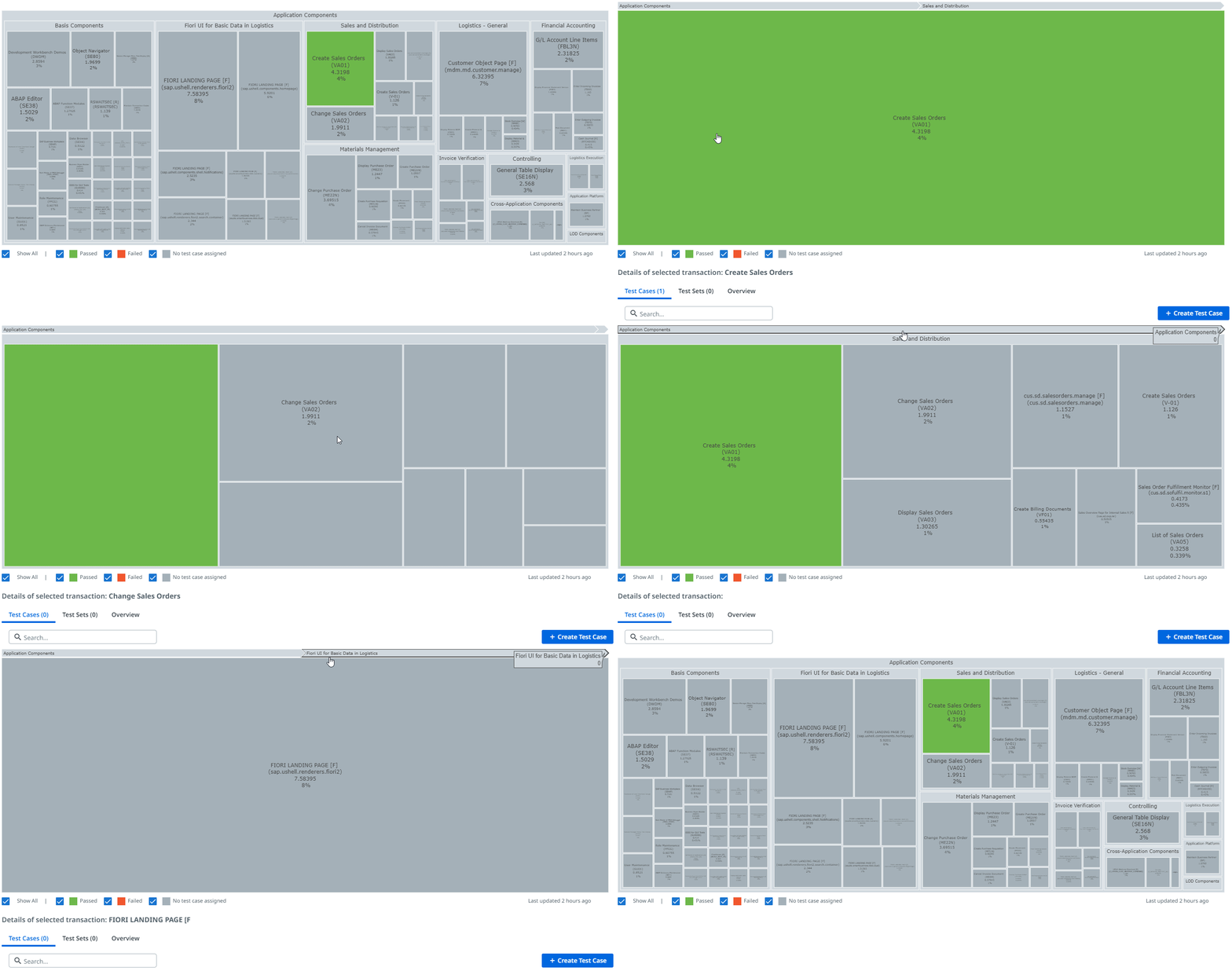
The size of a box on the Heatmap shows how relevant a test is for a specific goal — essentially, "how often and how heavily is this transaction used?"
Test relevance
Box size is calculated and weighted based on:
- Number of users
- Number of executions
- Overall execution time
- Transaction complexity (based on the number of development objects)
- Transaction intensity
Test coverage
Box color shows execution coverage via executed test cases:
- Gray — test case doesn't exist, or wasn't executed.
- Red — test case exists, but at least one execution has failed.
- Green — test case exists, and all executions passed.
Info
The heatmap supports SAP ECC, SAP S/4HANA, and SAP EWM systems.
Change Impact Analysis for SAP
The heatmap offers a Change Impact Analysis sublayer that analyzes your SAP system for changes and shows their testing status, so you can allocate testing effort more efficiently.
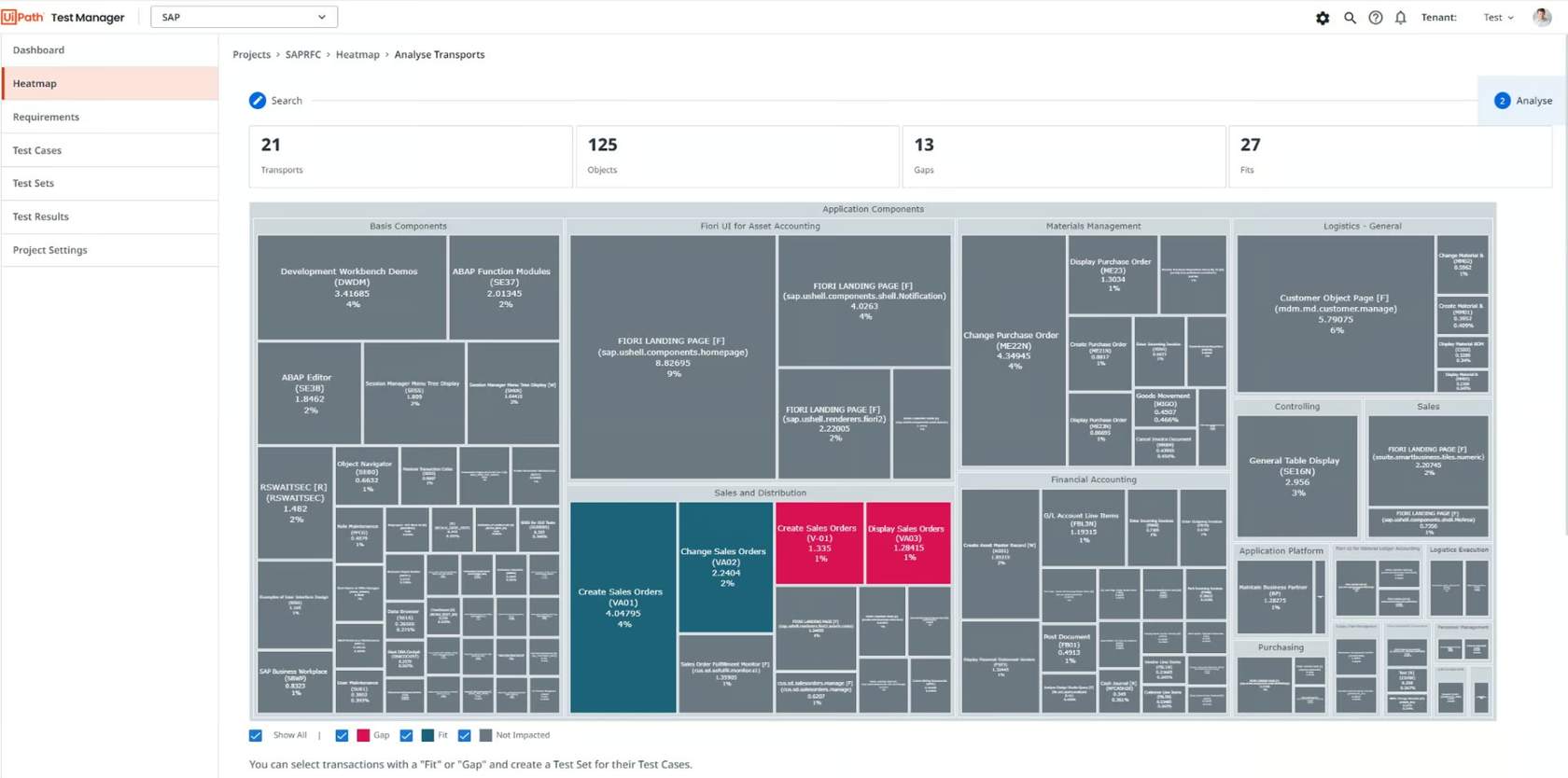
To analyze the impact of changes over your testing portfolio, select Analyze Transports in the top right (hover the info icon next to it for a preview of how many transports can be analyzed).
Powered by AI and machine learning, Change Impact Analysis for SAP scopes testing around any changes made in your SAP system, identifying the test cases that need to run so you test the right things.
Exercise using SAP Heatmaps
- Go to Project Settings.
- Then Integrations.
- Create a new SAP connection.
- Give it a name, and choose Upload from CSV as the data source.
- Add the CSV file below, then save.
Heatmap DEMO CSV 2024.csv (131.6 KB) — sample SAP heatmap data for the exercise
Finish by adding a test case to one transaction:
- Click Create Sales Order.
- The block expands — find Create Test Case on the right and click it.
- Add some dummy steps.
- Run it manually.
- Observe the color change in the Heatmap.