Orchestrator
Overview
UiPath Orchestrator is the centralized platform for managing and executing test automations. Used together with UiPath Test Manager, Orchestrator offers robust features for organizing, deploying, executing, and monitoring test cases and resources at scale.
Access management
Effective access management in Orchestrator ensures that only authorized individuals can perform specific actions within the testing environment — crucial for maintaining integrity, security, and efficiency.
Roles and permissions
Roles define a set of permissions that determine what actions a user or group can perform. They can be assigned at different scopes:
✅ Tenant-level roles – apply across the entire Orchestrator tenant.
✅ Folder-level roles – apply to specific folders within the tenant.
Common roles include:
✅ Orchestrator Administrator – full access to all features, including user, tenant, and folder management. Recommended for system administrators.
✅ Automation User – can run jobs, manage triggers, view logs, and use most resources needed for automation execution.
✅ Folder Administrator – minimum folder-level permissions needed to manage their own folders and subfolders.
Custom roles can also be created to tailor permissions to specific needs.
Permissions are granular actions that a role allows, such as creating, editing, or deleting resources. Assigning appropriate permissions ensures users can perform their tasks without overstepping boundaries.
Assigning users and groups to tenants and folders
Assigning to tenants:
- Navigate to Tenant → Manage Access in Orchestrator.
- Click Assign access → User/Robot Account/Group.
- Search for the user or group to assign.
- Select the appropriate role(s).
- Click Assign to confirm.
Assigning to folders:
Folders in Orchestrator provide a hierarchical structure for organizing automation resources, including test cases, assets, and robots — enabling fine-grained access control and resource management. Orchestrator supports up to seven levels of folder hierarchy, and access permissions are inherited from parent folders.
- Go to Tenant → Folders.
- Select the desired folder.
- Click Assign Accounts/Groups.
- Search for the user or group.
- Choose the role(s) to assign.
- Click Assign to finalize.
Best practices for access control
✅ Principle of least privilege – assign the minimum permissions necessary.
✅ Use groups for role assignment – simplifies administration and ensures consistency.
✅ Regularly review access rights – periodically audit user and group permissions.
✅ Separate environments – maintain distinct Dev/Test/Prod environments with appropriate access controls.
License configuration
Understanding UiPath licensing in Test Cloud
User licenses, assigned to individuals based on role:
✅ App Tester – Named User – manage and execute tests, and handle other automated processes for application testing.
✅ App Test Developer – Named User – includes all App Tester capabilities, plus the ability to create test automations in Studio and build Apps.
Info
The user licenses (App Tester and App Test Developer) grant access to all products available within Test Cloud — no additional user licenses are needed beyond these two.
Robot licenses, which determine execution capabilities:
✅ App Test Robot – execute application tests, RPA tests, and robotic process automations, for app testing use cases only.
To get started with Test Cloud, you need at least one Test Cloud-specific user license (App Tester or App Test Developer) and App Testing Robot runtimes assigned to the tenant.
Allocating user licenses
Direct allocation to users:
- Access the UiPath Automation Cloud Admin Portal.
- Go to Licenses.
- Click License Allocations to Users → Allocate Licenses.
- Choose the user(s) and assign the appropriate license type.
- Click Save.
Note
Direct allocation overrides any group-based license assignments for the user.
Allocation via groups:
- In Licenses, scroll to License Allocations to Groups.
- Click Create Allocation Rule.
- Select the group(s) and the license types to allocate.
- Click Save.
Note
When a user is added to a group with an allocation rule, they automatically inherit the group's licenses; removing them from the group removes the inherited licenses.
Managing robot licenses and runtimes
Viewing and allocating runtimes:
- Navigate to the Test Cloud Orchestrator.
- Go to Tenant → License.
- Under Testing Robots, click See More and allocate runtimes to machines or machine templates.
Warning
The number of allocated runtimes determines how many test cases can be executed concurrently — don't exceed the total available.
Enabling or disabling machines:
In Machines, toggle the Active column off to disable a machine (preventing license consumption) or on to re-enable it. You cannot disable a machine while robots on it are running.
Best practices
✅ Regularly audit license allocations against current team structures and project needs.
✅ Optimize runtimes based on actual testing requirements.
✅ Educate team members on license consumption implications.
✅ Use group-based allocations for scalability.
Resources: machines and assets
Machines — provisioning execution environments
✅ Standard machines – physical or virtual environments configured to closely mimic the production setup for running test cases.
✅ Machine templates – reusable configurations applied to multiple machines, useful for consistency in large-scale testing environments.
✅ Serverless machines – a scalable, maintenance-free environment managed by UiPath. Ideal for background, cross-platform automations, limited to jobs of up to 15 minutes.
Assets — managing test data and configurations
Assets store and manage data used across multiple automation projects, including test cases — text, boolean, integer, and credential types are supported.
✅ Assets can have global values or values specific to a particular robot or account, enabling dynamic configuration based on execution context.
✅ Assets with global values can be linked across multiple folders; assets with per-account values cannot be shared between folders, preserving data isolation.
Exercise 1
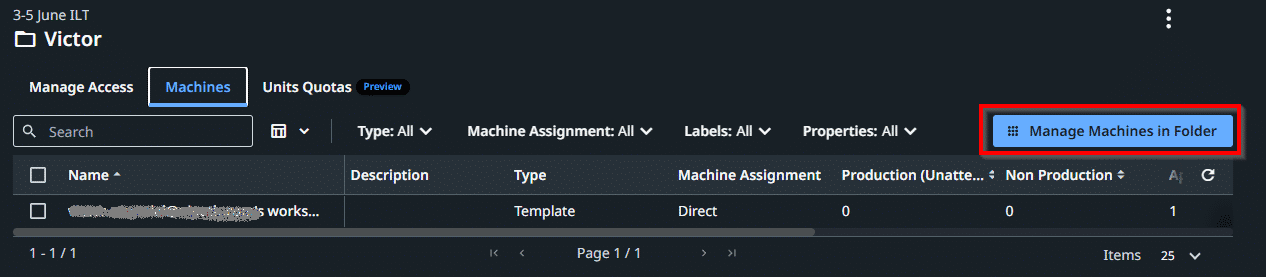
Create and configure your own folder under the current ILT folder (e.g. "3-5 June") to run your tests.
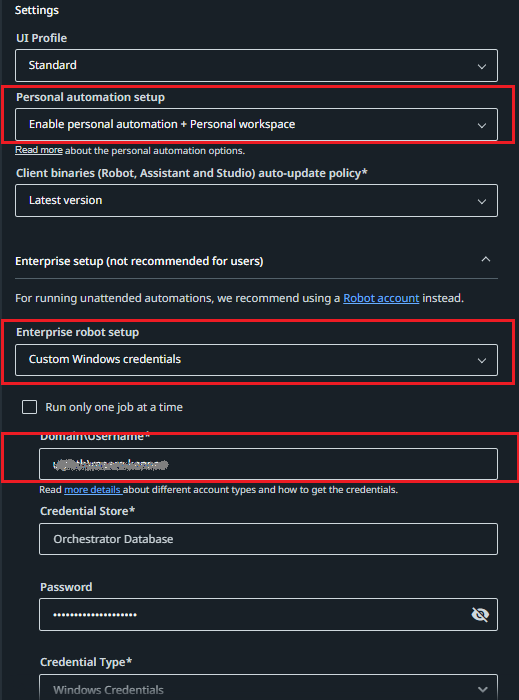
Enable your user to run Personal Automation + Personal workspace, give it an Automation Developer role, and — in the Enterprise setup — use Custom Windows credentials, specifying your domain\username without the password. Then add your user to your folder.

Exercise 2
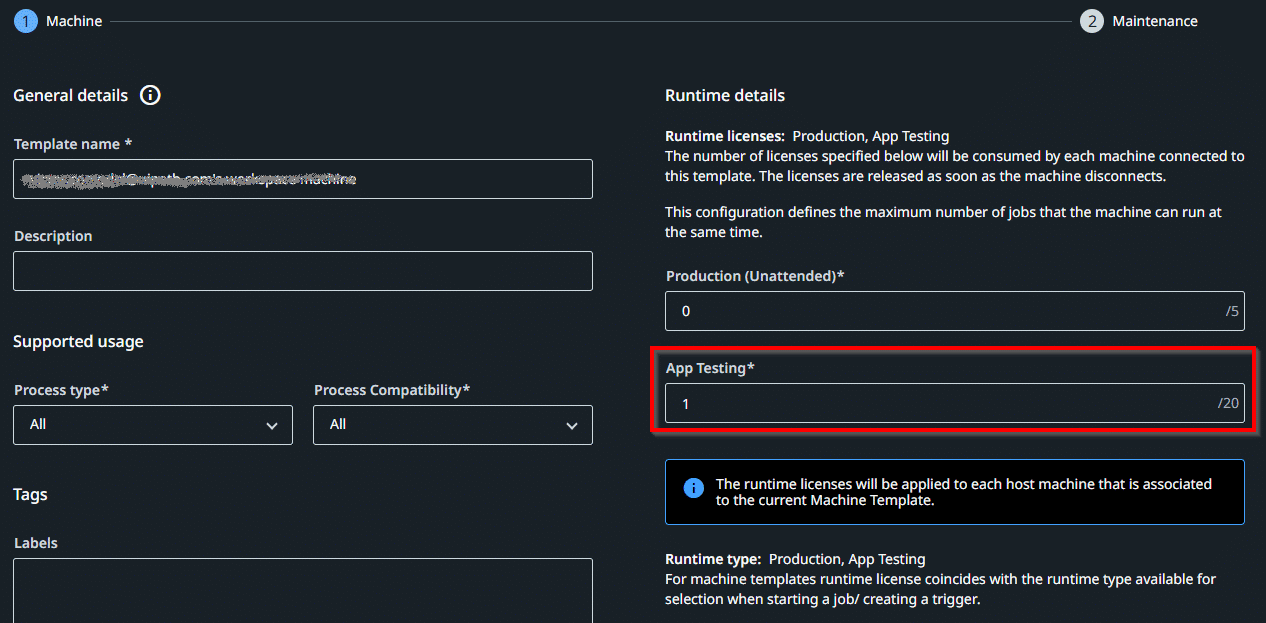
Add an App Test Robot license to your machine, then add the machine to the folder you just created.