Additional Agentic Features in Test Manager
Autopilot Search
With Autopilot search, you can search for any test object within a project using natural language.
If you're not sure what to search for, use one of the example search queries Autopilot provides. After results return, Autopilot also lets you perform actions on the resulting objects.
Prompt Library
The Prompt Library in Test Manager provides a curated collection of predefined and custom prompts that guide Autopilot — shaping the AI's behavior when generating test suggestions or analyzing requirements.
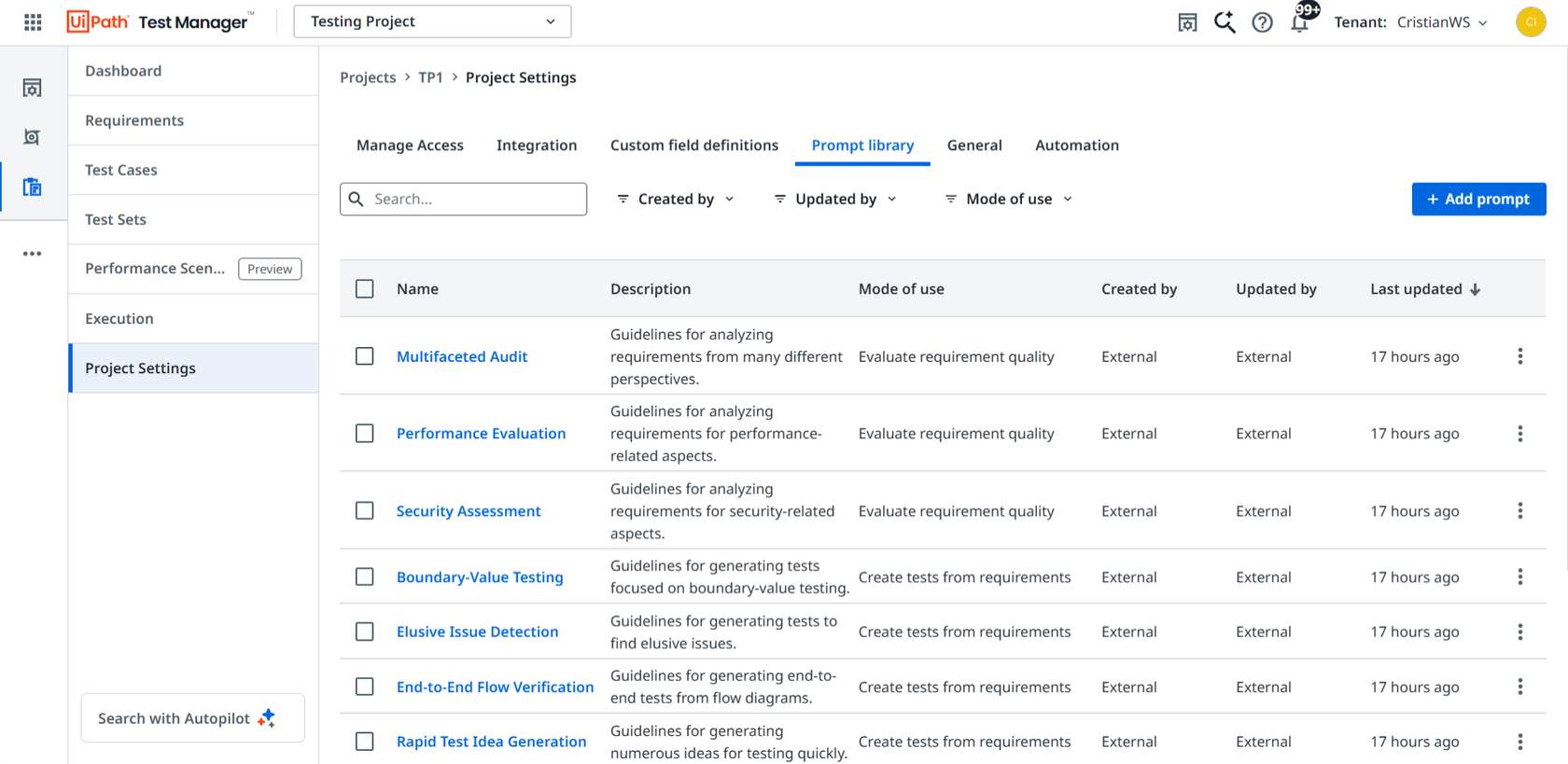
Predefined prompts address use cases including:
- End-to-End Flow Verification
- Rapid Test Idea Generation
- Elusive Issue Detection
- Boundary-Value Testing
- SAP Business Process Testing
These prompts accelerate generating relevant test scenarios or getting focused insights from requirements documentation.
Best practices for prompt generation
- Leverage predefined prompts — start with the library's predefined prompts to quickly initiate tasks and guide Autopilot effectively.
- Customize for your needs — tailor prompts to your specific test cases or workflows for more accurate, relevant results.
- Be clear and concise — ambiguous prompts lead to misinterpretation; straightforward language helps Autopilot understand your intent.
- Test and iterate — evaluate outcomes and adjust prompts to refine results.
- Document effective prompts — keep a record of prompts that work well, as a reference for future projects and team efficiency.
Import Manual Test Case(s) Using Autopilot
Using Autopilot, you can import manual test cases from Excel files. Autopilot allows you to generate a list of manual test cases that mirrors those from your uploaded file.
1. Open a project, and go to Test Cases.
2. Select Import Test Cases → Start new import.
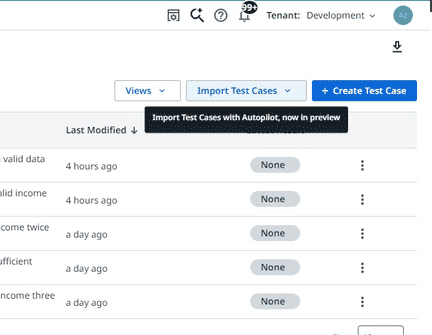
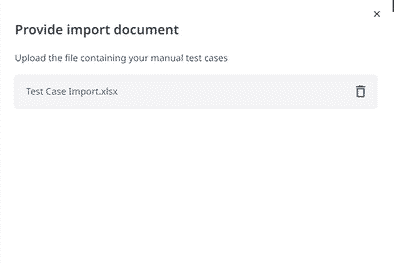
3. In the Provide import document panel, upload the file that contains your manual test cases.
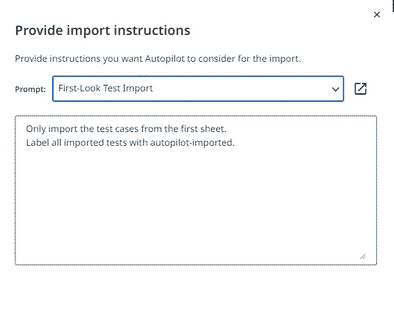
4. Provide the prompt instruction in the panel.
5. Review imported Test case(s)
Exercise
Create 3 test cases for the UiBank app in Excel and import them into a Test Manager project.
Test Case Import template.xlsx (10 KB) — template for this exercise
AI-Powered Insights
Autopilot provides testers with actionable insights into test results without needing prebuilt templates. The goal of the resulting "test insights reports" is to help testers understand why test cases are failing, by generating a report with Autopilot.
The report can include up to five sections, each with multiple insights. For each insight, select the icon showing the number of test cases, or click Show, to view affected objects (test cases or test case logs) and search through them.
| Section | Description |
|---|---|
| Overview | Average failure rate, test set failure rate, and percentage of errors by severity for the selected test results. |
| Top Failing Tests | The most frequently failed test cases, with direct access to them. |
| Common Errors | The most common errors encountered during test executions. |
| Error Patterns | Categorizes errors so you can identify failure patterns and troubleshoot more easily. |
| Recommendations | Suggestions to prevent encountered errors and optimize test execution stability. |
Let's see how it works.
Exercise: AI-Powered Insights
In the following guided practice, we will learn how to make use of the AI-powered capabilities to generate insights on why our tests are failing and how to improve them.
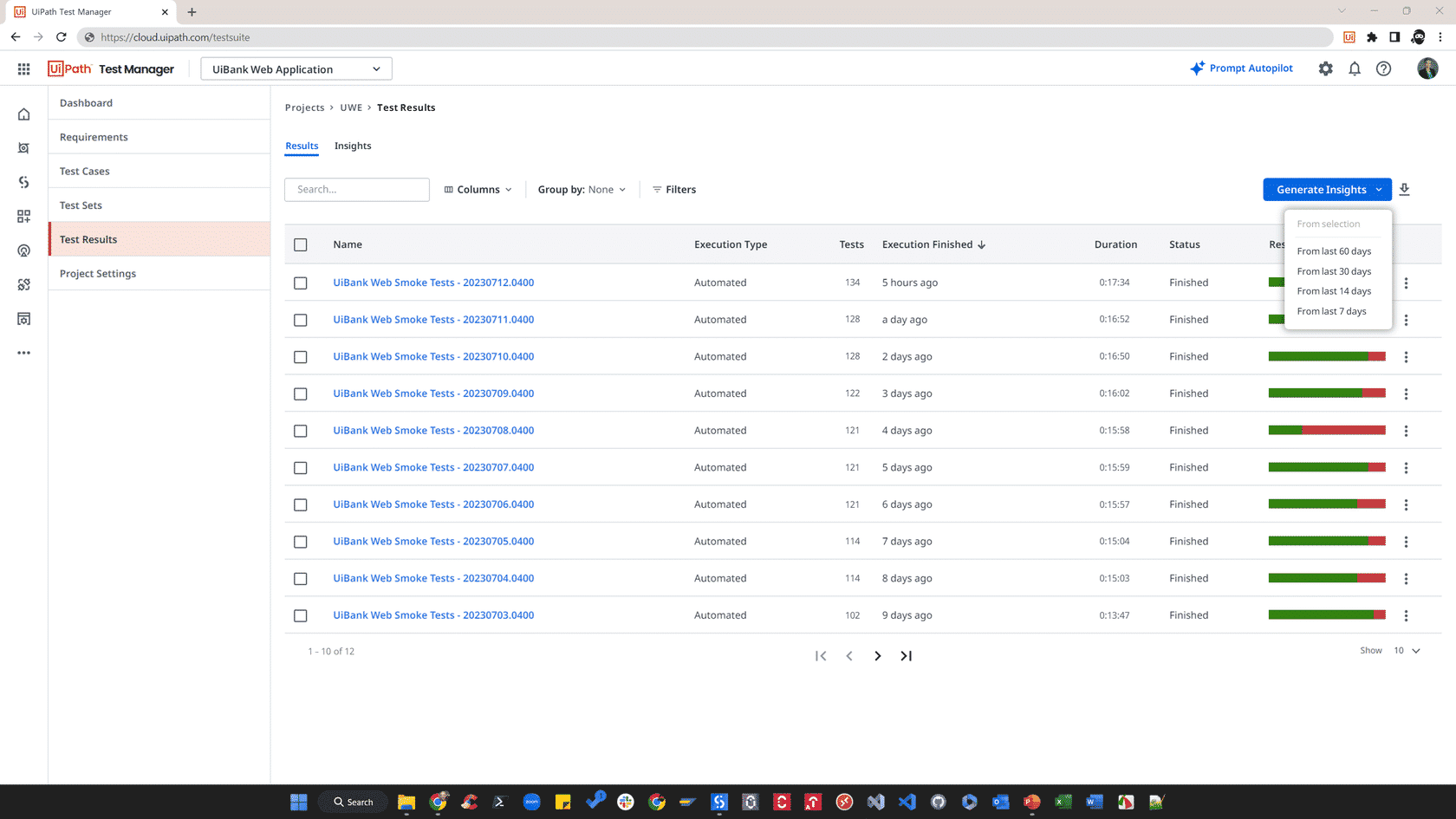
1. In Test Manager, go to your project and click Test Results. Select the test results you want to generate a report for, then click Generate Insights. In the dropdown that opens, you have the option to generate the report From Selection or to choose a timeframe. We'll continue by clicking From Selection.
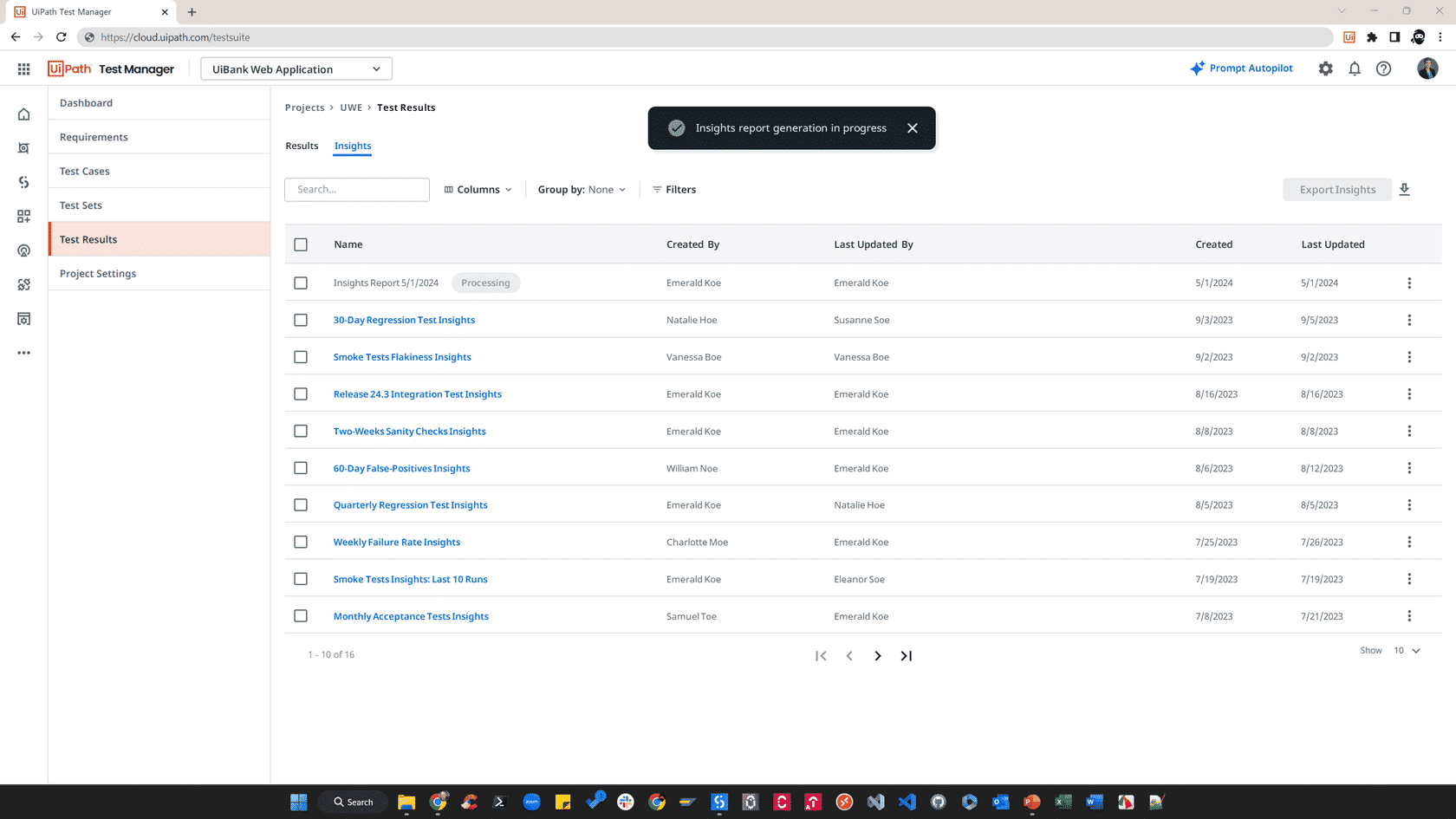
2. Notice that Autopilot starts working on the report. This process usually takes a minute or more, depending on the amount of test results provided.
3. Once the report is ready, you can change its title and view different sections, such as:
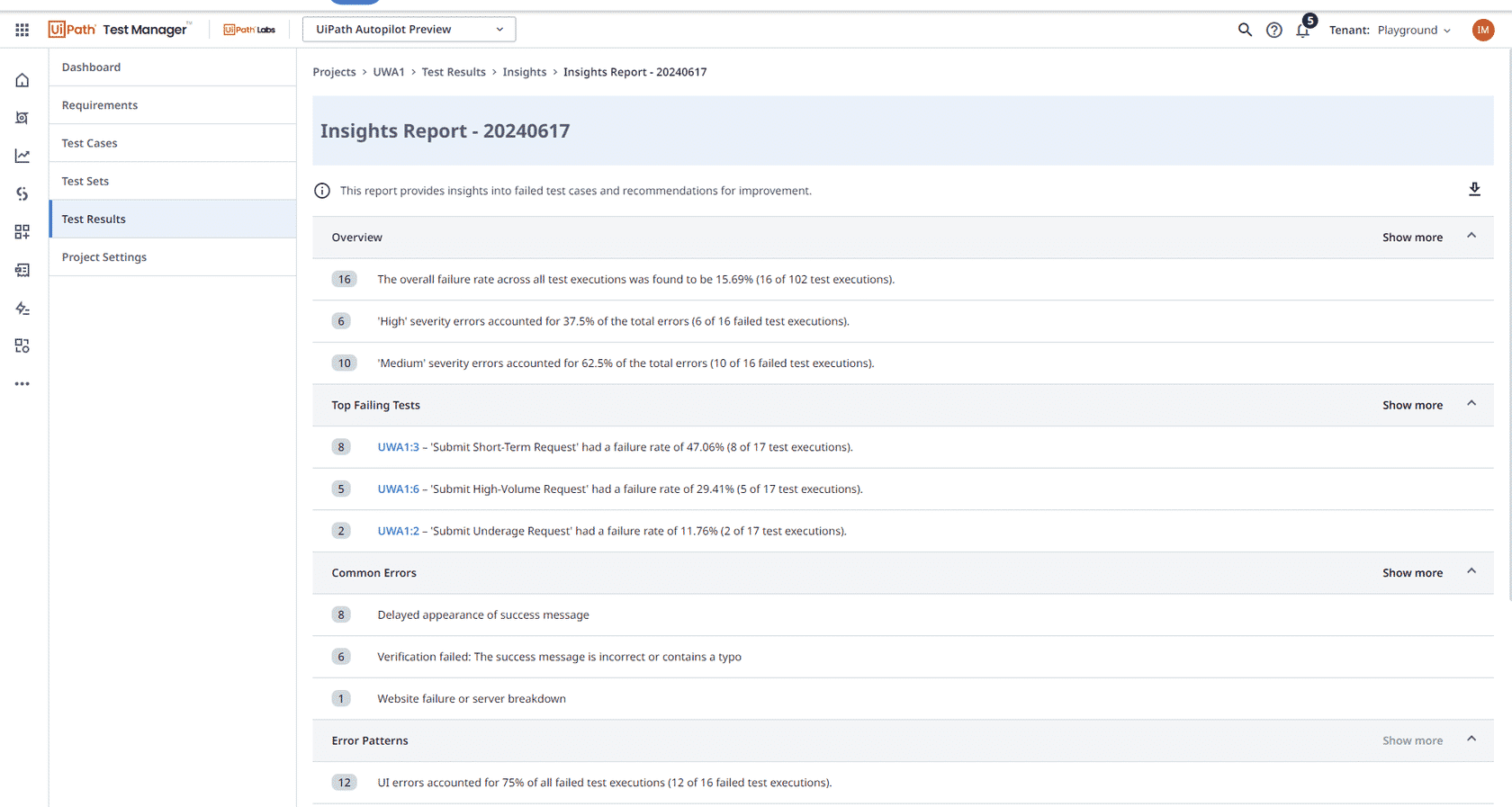
✅ Overview — overall statistics that Autopilot found.
✅ Top Failing Tests — displays the tests with the highest failure rate; click the Show button that appears on hover for each test case to open all failed executions for that test case.
✅ Common Errors
✅ Error Patterns
✅ Recommendations
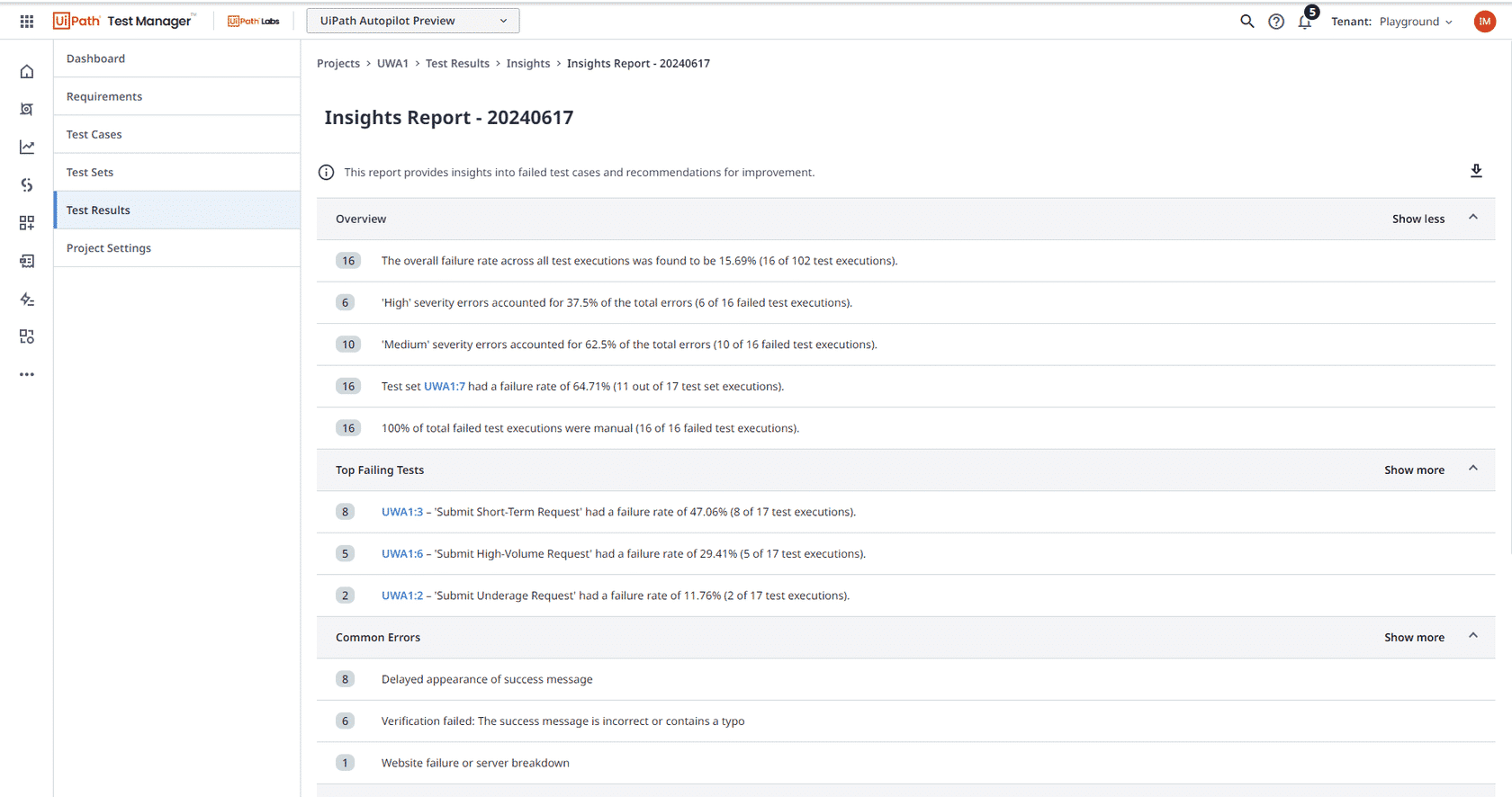
4. In each displayed category, you can choose to show more insights if the ones displayed don't help you. You can also download the insights report as a Word document, in case you want to share it with someone who doesn't have access to Test Manager.
Summary: In this guided practice, we learned how to generate insights with Autopilot.