Terminal Testing
What is a terminal?
Terminals — also known as command lines or consoles — let you accomplish and automate tasks on a computer without a graphical user interface. Sending simple text commands to navigate a directory or copy a file forms the basis for many more complex automations and programming skills.
What is a mainframe computer?
A mainframe computer is used primarily by large organizations for critical applications, bulk data processing (census, industry/consumer statistics, ERP, large-scale transaction processing), and similar workloads. Mainframes are larger and more powerful than minicomputers, servers, workstations, and personal computers. Most large-scale computer-system architectures were established in the 1960s and continue to evolve — mainframes are used as (super)servers.
Setup
Since users typically access terminal-based applications through a terminal emulator, it makes sense to test them the same way. UiPath supports terminal emulation through the UiPath.Terminal.Activities package.
The Terminal pack contains activities to connect to a terminal and work within it efficiently — retrieve text, fields, or screen positions, send keys or text, or wait for certain text/fields to appear as triggers.
The Terminal Session activity connects to the host system, or via a third-party terminal emulator such as Attachmate Reflection, Attachmate Extra, Rocket BlueZone, IBM Personal Communications, or Reflection for UNIX/IBM.
Recovery
Recovering from unexpected errors is one of the challenges of testing terminal-based applications. Because of their stateful nature, several actions may be needed to return the application to its "base state" where each test starts and stops. The solution: build a recovery step executed at the end of each test that identifies the current screen and calls its "Dismiss" action. Typing F3 or F12 may suffice for most screens; others may need a series of actions, or completing the current transaction. Either way, the recovery mechanism ensures the target application is at a known starting state before each test begins.
Exercise: Terminal Testing
Create a test case that verifies the density of the Moon is greater than 3 g/cm³, using the NASA Horizons System CLI (no account or password required). Explore what commands are needed — and don't forget to install Terminal Activities.
Step 1 — Test case
Create a new test case.
Step 2 — Activity package
Install Terminal Activities.
Step 3 — Terminal activity
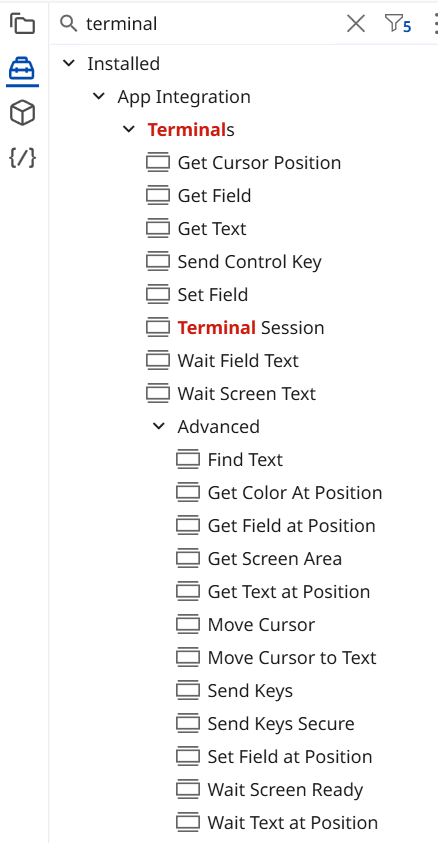
Go to the activity panel and search for Terminal activities.
Step 4 — Terminal Session
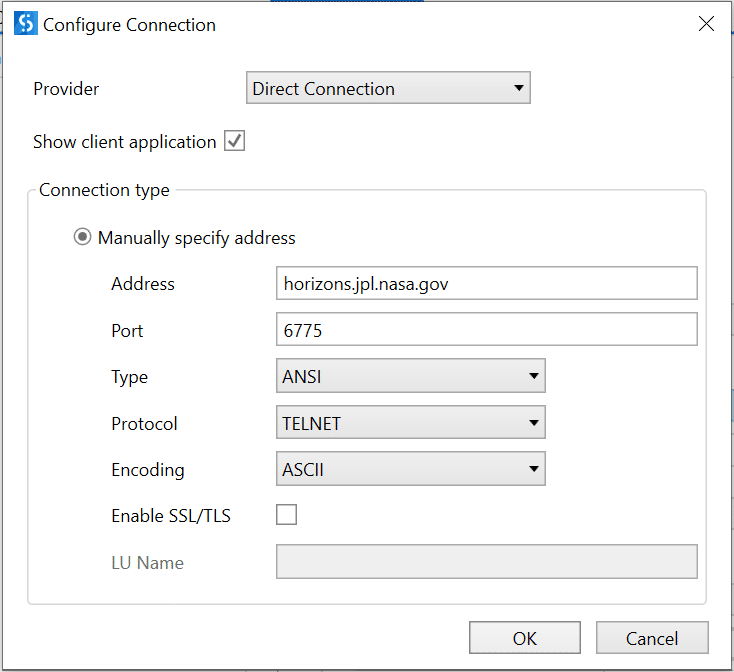
Drag and drop the Terminal Session activity into the designer
Using the configuration shown in image.
Step 5 — Record
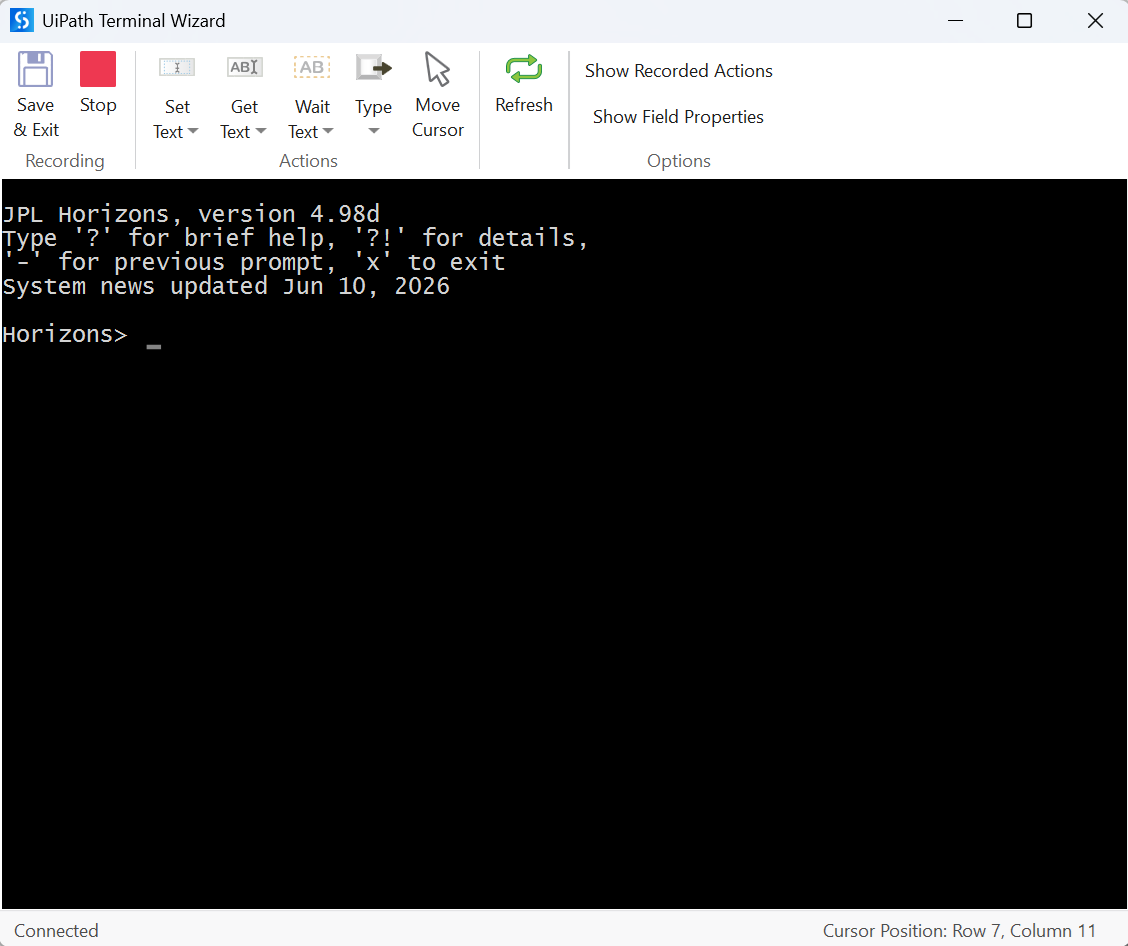
Click OK — the Recorder wizard opens.
Perform the required actions, then save and exit.
The recorded actions are automatically converted into workflow activities and added to your test case.
Alternatively, build the test case by dragging and dropping the required activities.
Step 6 — Send "Moon"
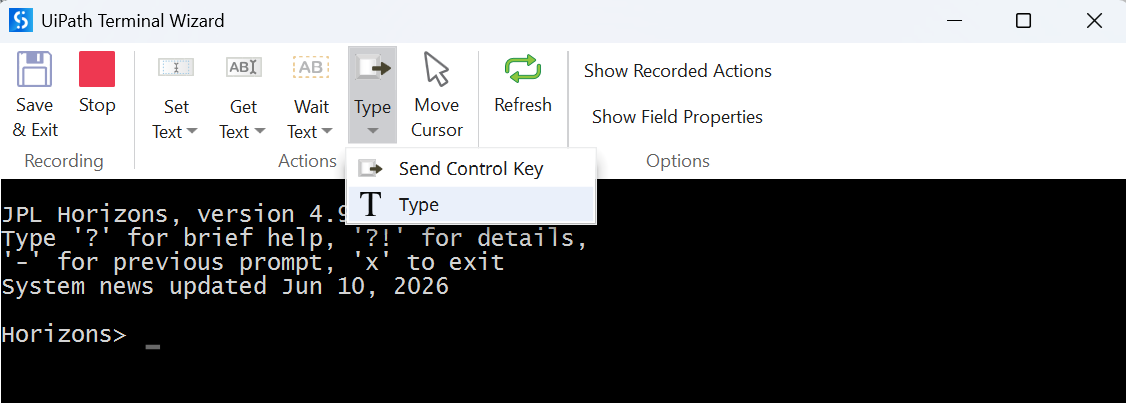
Click Type, select Type from the dropdown, add Moon to the text box, and click OK.
Step 7 — Transmit
Click Type, select Send Control Key
Leave Transmit as the Control Key option (default), and click OK.
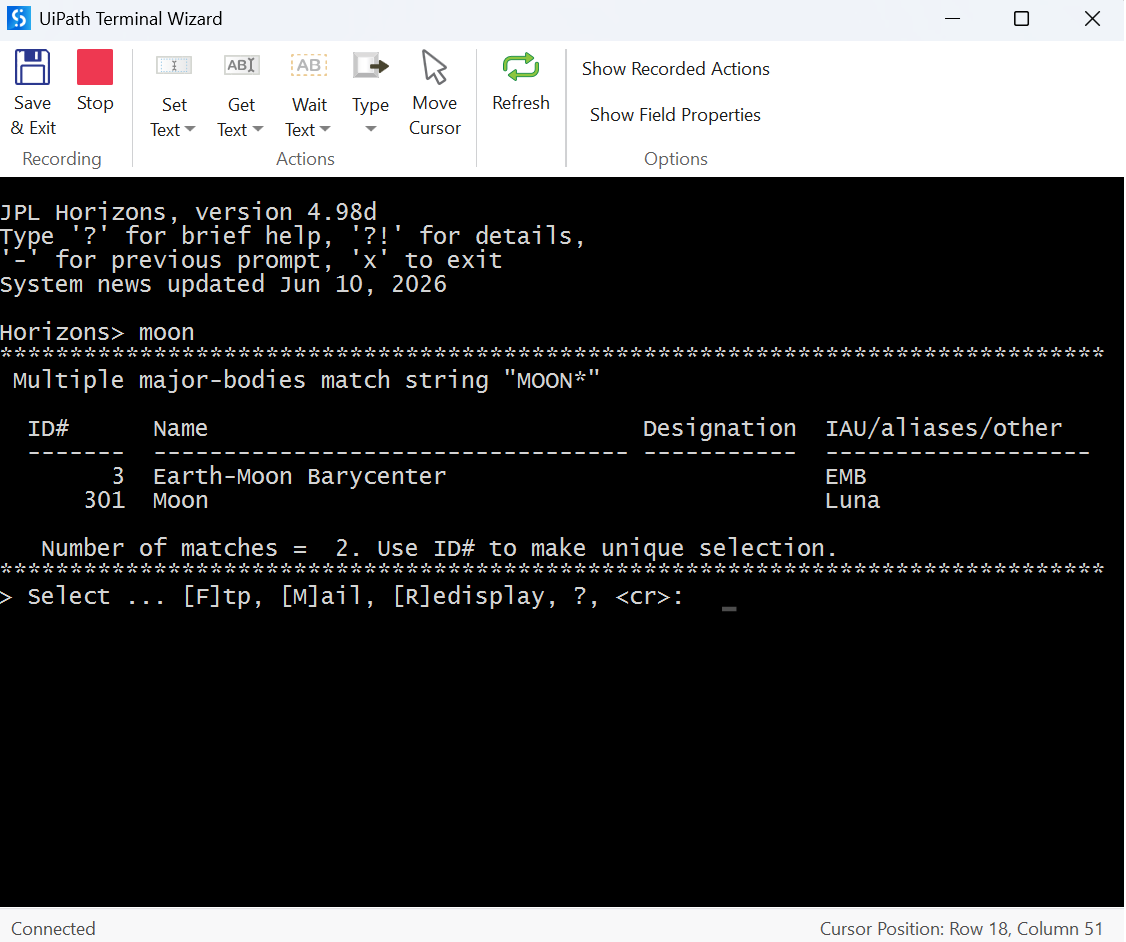
You will receive response as shown in image
Step 8 — Density data
The Horizons System returns two matching options: 3 and 301. Since we want the Moon's physical properties (including density), use 301 — repeat the Type/Transmit steps to send it.
Step 9 — Extract data
Observe the response — density data is available.
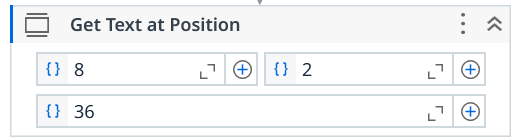
Click Get Text, then Get Text at Position from the dropdown
Use these parameters: Row 8, Column 2, Length 36.
Step 10 — Test the test case
Save and exit.
The recorded actions are automatically converted into workflow activities and added to your test case.
Create a variable to hold the output from Get Text at Position, and add a log message to confirm the actions execute.
Step 11 — Add verification
Use Verify Expression With Operator to verify the output.
The output is stored as a string — extract the numeric value and convert it to a numeric data type before comparing it to 3. Use Autopilot to generate the required expression.