Getting Started in Studio
UiPath Studio
Studio provides specialized tools to integrate testing into the development and automation process. Studio allows you to perform both Application and RPA testing. You can use Studio to create, design, and map test cases and execution results to requirements and defects (e.g. Jira, Xray).
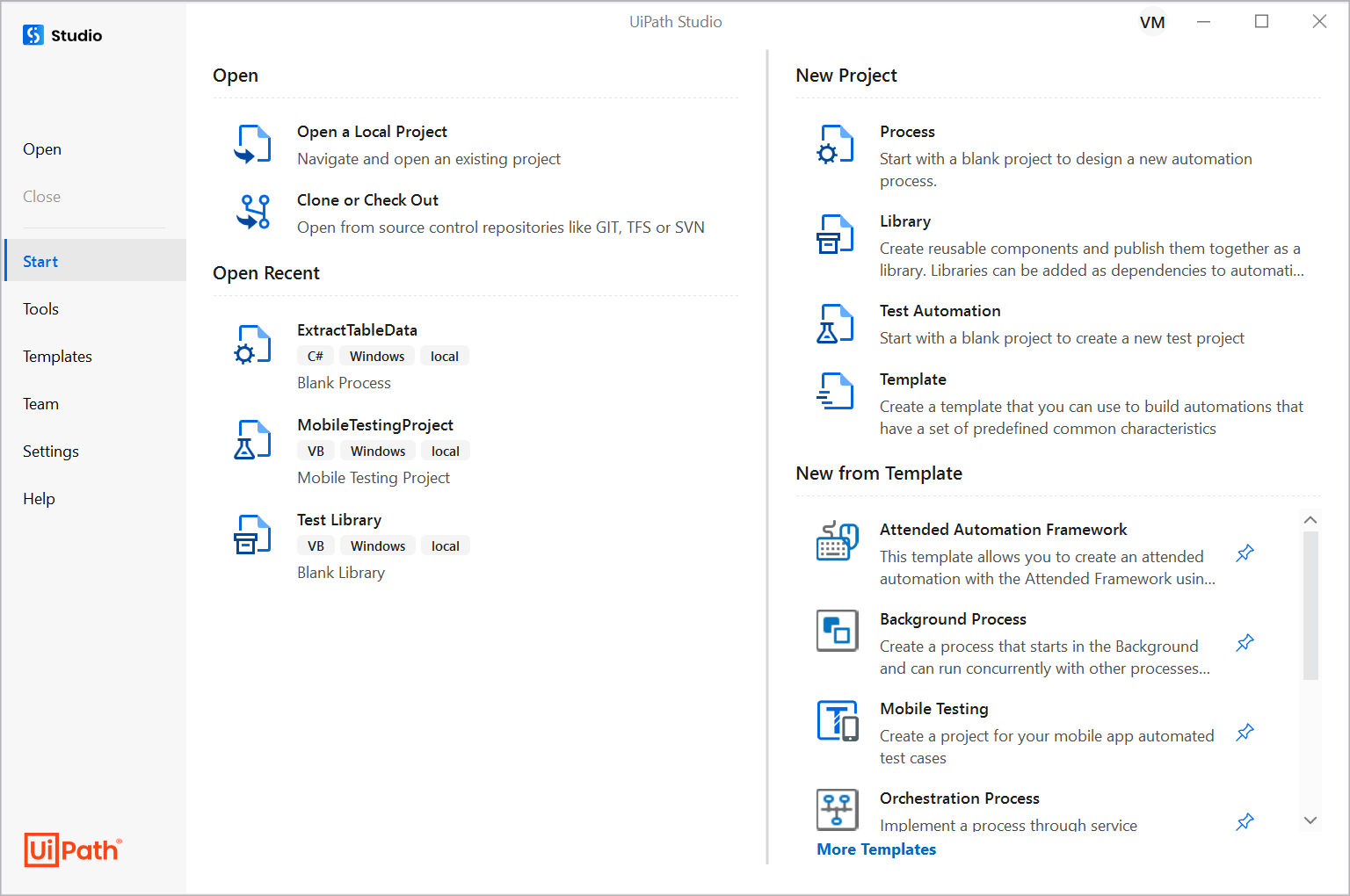
Test Automation Project
For application testing we use a project of type Test Automation.
We use the following activity packages:
UiPath.System.Activities
UiPath.UIAutomation.Activities
UiPath.Testing.Activities
Testing activities
The most important testing activities are the verify (assert) activities:
Verify Expression : Verifies the truth value of a given expression. An expression must be supplied in its respective property field.
Verify Expression With Operator : Verifies an expression by asserting it in relation to a given expression with an operator. The expressions tested with this activity must be inserted in their respective property fields.
Verify Control Attribute : Verifies the output of a given activity by asserting it in relation to a given expression. The activities tested with this activity must be inserted in the body of the activity, and an expression and operator must be supplied in their respective property fields.
Verify Range : Verifies whether an expression is located within a given range. The expressions tested with this activity must be inserted in their respective property fields.
Properties for verification activities
✅ ContinueOnFailure — Specifies if the automation should continue even when the activity throws an error. Default is True. If set to False and an error is thrown, execution stops. If True, execution continues regardless of any error.
✅ TakeScreenshotIfFailed — If True, takes a screenshot of the target process if the verification fails.
✅ TakeScreenshotIfSucceded — If True, takes a screenshot of the target process if the verification succeeds.
✅ AlternativeVerificationTitle — Specifies an alternative display name, overriding the default DisplayName shown in Orchestrator.
✅ OutputMessageFormat — Specifies the format of the output message.
✅ Result — Reflects the state of the verification activity. Use this to send notifications or create reports for failed verifications.
Test case
A test case is a specification of the input, execution conditions, testing procedure, and expected results that define a single test.
Widely adopted as a best practice for test case design:
✅ GIVEN — Setup and prepare the conditions needed for the test. This includes initializing data, navigating to the correct page, and ensuring the application is in the right state.
✅ WHEN — Execute the workflow or action being tested. Perform the steps that trigger the behavior you want to verify.
✅ THEN — Verify the expected results. Compare actual outcomes with expected outcomes, then clean up any test data or state changes made during the test.