Connect Your Project to Test Manager and Import the Object Repository
Launch the downloaded ILT Test Automation project
- Launch UiPath Studio.
- Select Open Local Project.
- Browse to the extracted project folder and select the
project.jsonfile. - Click Open to load the project.
Exercise: connect Studio to Test Manager
To complete the integration with Studio, you need to configure the Test Manager settings.
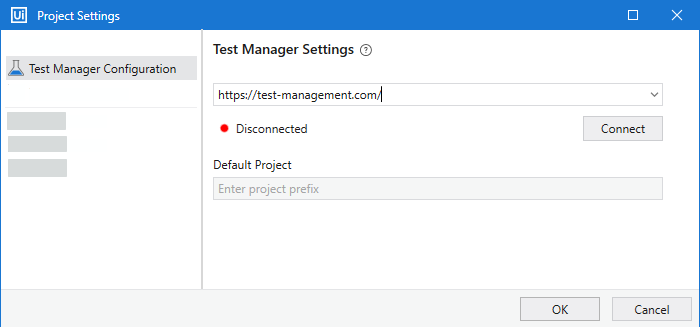
- In the Design ribbon, navigate to Test Manager → Test Manager Settings.
- Go to Test Manager Configuration and enter your Test Manager URL from Automation Cloud.
- Click Connect and log in using your Test Manager credentials.
- Select your default project from the dropdown list in Default Project.
- Click OK to save changes. Once connected, this is reflected with a green icon.
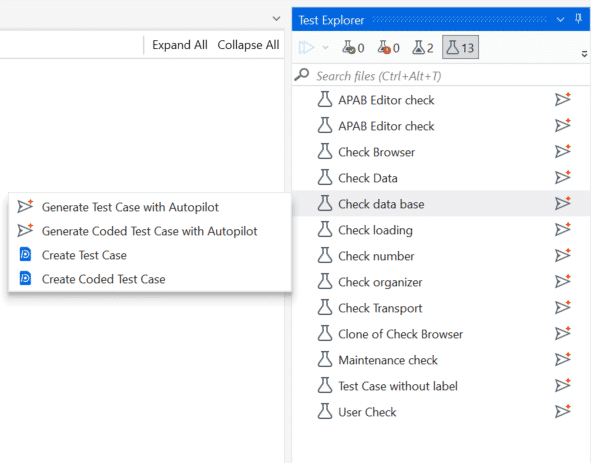
Now, you will find the test cases that were part of the exercise, as well as the manual test cases here in Studio in the Test Explorer.
Import the Object Repository library
Next, import the UI Library you published earlier so its elements are available in this project.
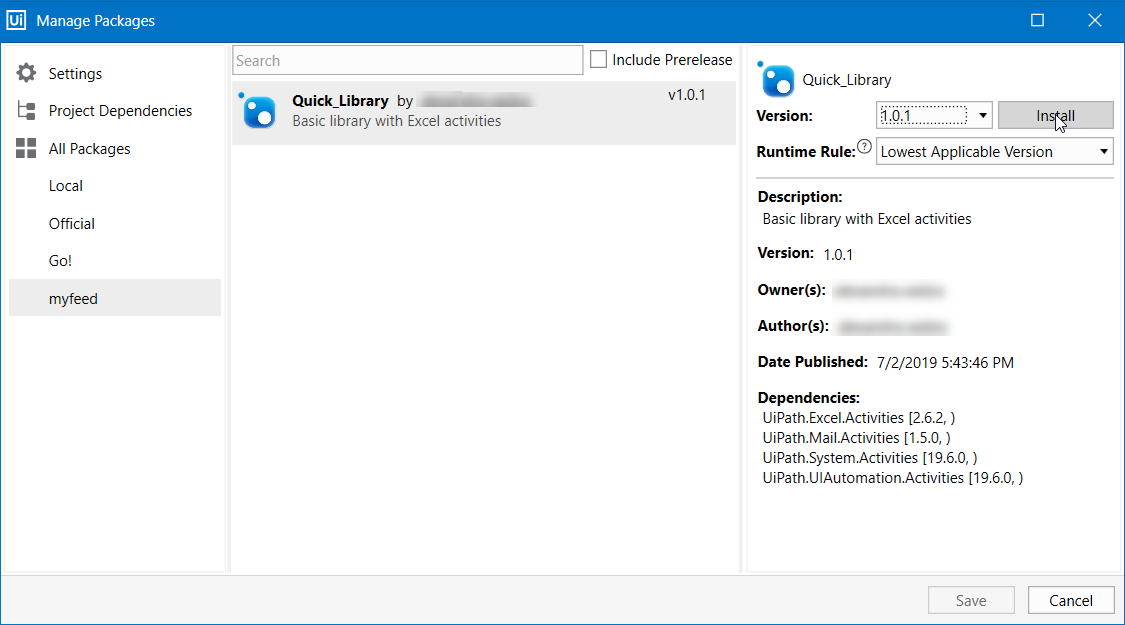
- Click Manage Packages from the top ribbon.
- Go to Settings.
- Provide a unique name for the package source.
- Click the ellipsis (...) button and browse to the custom location where the library was saved. Select the library and click Add.
✅ The custom library now appears in the left panel alongside the other defined sources.
✅ Select the library, click Install, then click Save.
Next → Manual to Automated Test Case