Integration Service
UiPath Integration Service is the platform component that lets UiPath robots connect to third-party applications through APIs — automating tasks across systems without diving into complex code, which improves efficiency and reduces manual errors.
Key benefits
- Pre-built connectors — a wide range of ready-made connectors for popular applications.
- Standardized authentication — simplified setup and management of connections with consistent authentication methods.
- Event-driven automation — trigger automations based on events in connected applications.
- Unified experience — a consistent interface across UiPath Studio environments.
Key components
Connectors : Pre-built integrations that let UiPath interact with external applications' APIs, providing activities to read emails, update records, send messages, and more — reducing the need for custom code.
Connector Builder : Lets you create custom connectors for applications without pre-built integrations. A user-friendly interface for defining connection settings, authentication methods, and specific actions or queries. Virtually any application with a RESTful API can be integrated.
Connections : The authenticated links between UiPath and external applications, established through connectors. They store the credentials and settings needed to communicate securely, and can be created, modified, or deleted, and shared across folders in Orchestrator.
Triggers : Let automations start based on specific events in connected applications — e.g. starting a process when a new email arrives or a CRM record updates. Enables real-time, event-driven automation.
By combining connectors, the Connector Builder, connections, and triggers, testers can build robust, scalable, automated workflows that integrate with a wide range of applications.
Exercise Using GenAI Connector
Prerequisite – GenAI Connection
This exercise uses GenAI activities, which require a GenAI connection to be configured in Integration Service.
Follow the steps below to create the connection before continuing.
Important
The UiPath GenAI Activities connector uses UiPath-managed GenAI services and does not require an API key, subscription, or authentication parameters. Simply creating the connection is sufficient.
The connection must exist in the same tenant and folder where your Studio will use it.
If the connection is not visible in the activity, refresh the project or recreate the connection from Integration Service and ensure you are in the correct folder.
1. Log in to your UiPath Automation Cloud tenant.
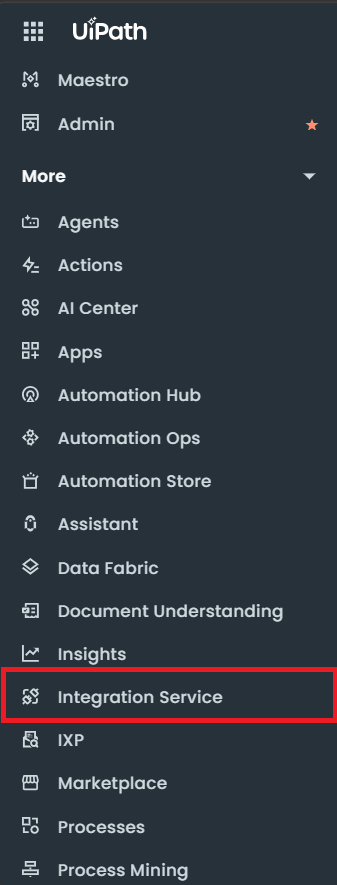
2. Navigate to Integration Service
From the left navigation menu, select Integration Service.
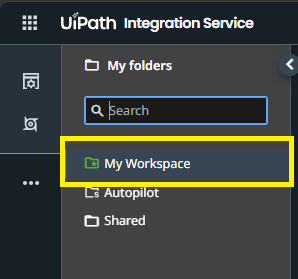
3. Select Folder
Ensure you are in My Workspace.
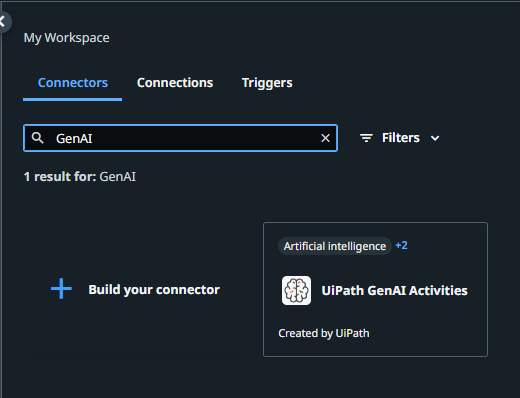
4. Select Connector
In the connector catalog search box, search for UiPath GenAI Activities.
Select UiPath GenAI Activities from the results.
5. Connect
Click Connect to create the connection.
Click Connect again to authenticate and establish the connection.

6. Verify
Verify that the connection appears under Connections and has a status of Connected.

Exercise Steps
1. Complete the Generate Low-Code Workflow.xaml under 2. Autopilot for Developers folder in the ILT exercise.
2. Observe the workflow annotation. A sample instruction is provided for generating the workflow.
3. Click the sample instruction. Notice the Generate option displayed by Autopilot at the right end of the annotation.
4. Click Generate.
5. Observe as Autopilot generates the workflow automatically based on the provided instruction.
6. Review the generated workflow. Configure the GenAI activity for the connection, if necessary.
7. Click Debug or Run to verify that it executes successfully. The result will be displayed in a message box.