Templates
Test case templates
Use test case templates as base models for your test cases — for example, a template with data variations you can reuse across different tests. You can create test case templates for Test Automation projects, including other file types such as the Global Exception Handler.
Note
For other project types (e.g. Process Automation), you can create workflow templates instead.
Restrictions
✅ Templates are specific to the project type and language used to create them. ✅ Templates cannot be converted to workflows, compiled, or published.
Extract a file as a template
- Open your test case in Studio.
- In the Project panel, right-click it and select Extract as template.
- Your test case is now stored in Project → Templates — you can copy/paste or move it back to your testing folder.
Advantages of test case templates
✅ Consistency — uniform structure across all test cases, making them easier to understand, execute, and evaluate.
✅ Efficiency — a predefined structure saves time and reduces the risk of missing essential components.
✅ Thoroughness — guides the tester through every necessary element of a test case.
Exercise
Create your own test case template using the Login workflow.
Execution templates
Through execution templates, you can wrap test cases at runtime to use your defined execution conditions for multiple scenarios. For example, instead of copying, pasting, and maintaining multiple test cases, you can create a single template that acts as a boilerplate to wrap the test cases at runtime.
Conditions
✅ When you run or debug the file, the test case and its associated execution template are merged into a temporary file. The collection of arguments and variables from both files are compared by name at runtime. If the execution template shares a matching argument or variable name with the test case, it will be linked in the Invoked Workflow File after the merge. If the test case does not have any matching arguments with the execution template, the arguments from the former file will be copied to the latter.
✅ Moving or renaming an execution template automatically updates its associated test cases.
✅ When publishing a project with execution templates, any publishable test cases are merged with the execution templates. The resulting files are the project entry points.
✅ You can make use of reusable content by creating a library with execution templates.
✅ You can invoke multiple placeholders in the workflow.
How it works
The execution template acts as a wrapper for test cases. In the Designer panel, you can see a placeholder activity within the execution template.
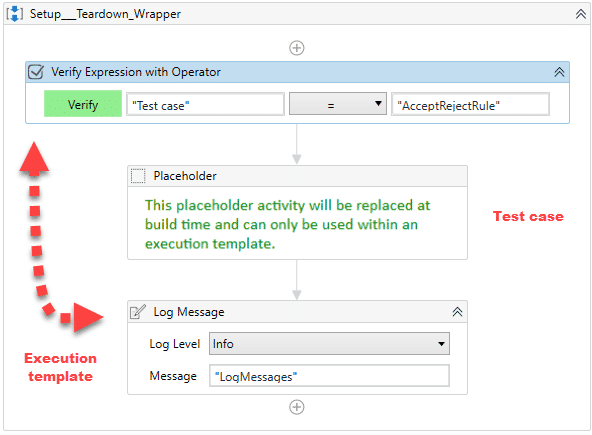
This activity is going to be replaced at runtime with an Invoke activity, adding the invoked test case to the execution template.
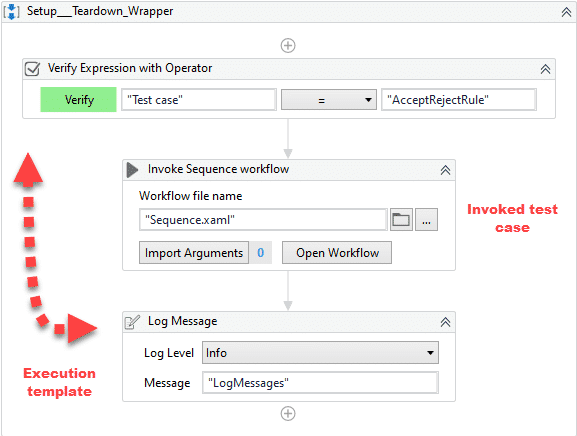
Advantages of execution templates
✅ Standardization — ensures different testers follow the same steps, maintaining consistency during the testing phase.
✅ Reusable — templates are reusable across different types of tests and even different projects, promoting efficiency and reducing redundancy.
✅ Ease of Use — execution templates guide the tester through the process step by step, making it easier for those unfamiliar with the application being tested.
✅ Quality Assurance — by ensuring tests are performed consistently, execution templates contribute to the overall quality of the tested application, ensuring all functionalities are adequately verified.
Exercise
Create your own execution template with set-up (Login) and tear-down (Logout) parts.
Cross-browser test case template
What's new?
UiPath Studio now offers a new cross-browser testing template that allows users to seamlessly run tests across multiple browsers in a single automation workflow.
This template simplifies the process of validating web applications on different browsers, such as Chrome, Firefox, and Edge, without needing to create separate test cases for each one.
By enabling parallel or sequential testing on various browsers, users can ensure consistent performance and behavior across different environments.
This feature saves time, enhances test coverage, and improves the overall reliability of web applications, making it easier to catch cross-browser compatibility issues early in the development cycle.
How to use this feature
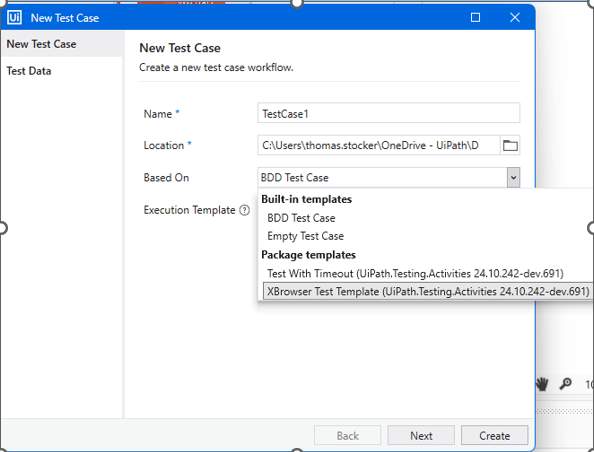
1. Create a new Test Case — create a new test case and select the XBrowser Test Template.
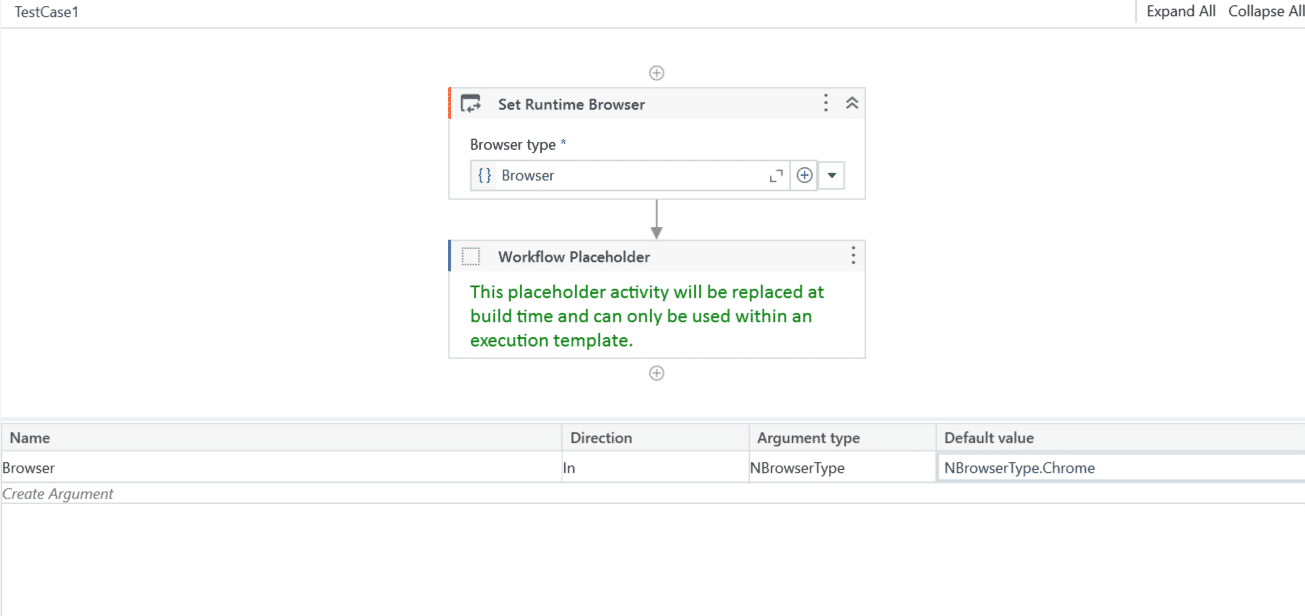
2. The new template — after you click Create, a new test case is generated using the new template. The test contains the Set Runtime Browser activity at the top and a Browser argument, which can be used to set the right runtime browser.
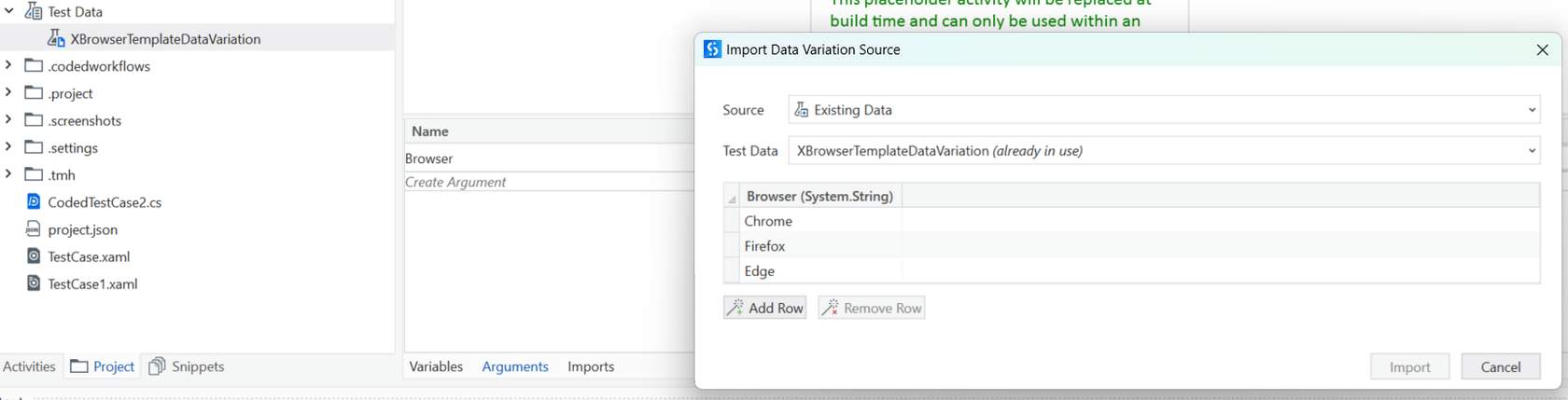
3. Configuration of used browsers — this new test case is now a data-driven test case, with all common browser names set as data variations. The tester can click Update Test Data to see all browsers used.
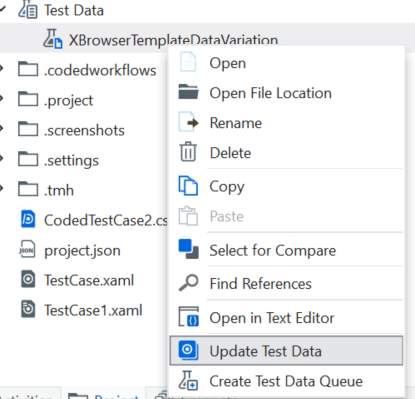
4. Editing browsers used — the user can make changes to the list of browsers to be used when running the test case. After these changes, the test case can be run.
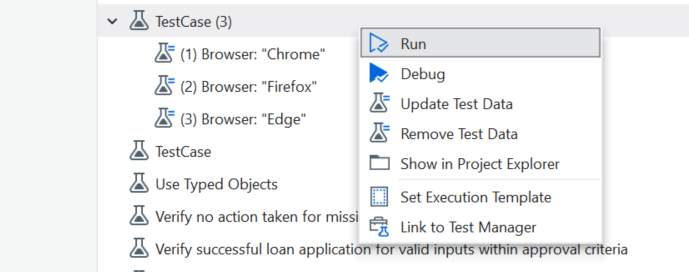
5. Running the test — after the browser options have been selected to the tester's preferences, the test case can be run from Test Explorer. When the test case is run, it runs multiple times — once for every browser configured in the attached test data sheet.
Note
The object repository should be created one time. The screens and elements created should have reliable descriptors in order for them to work for all other browsers as well.
Exercise
Create a new test case using the XBrowser test template.