ALM Tools Integration - Test Manager Connect
Requirements Synchronization
Test Manager supports the synchronization of requirements from external tools as well as the creation of requirements from within Test Manager.
In order to keep requirements from external ALM tools in sync with requirements from Test Manager, configure a connection first.
Once a connection is configured properly, any requirement which is created in the external tool is also created in Test Manager. The name and description of those requirements are also kept in sync when changed in the external tool. In Test Manager, these attributes are read-only.
Defect Synchronization
UiPath Test Manager enables seamless synchronization of test execution results with external Application Lifecycle Management (ALM) tools. This integration ensures that information such as execution results, logs, timestamps, and other details are shared with the connected ALM tool, facilitating efficient defect tracking and resolution.
Creating Defects
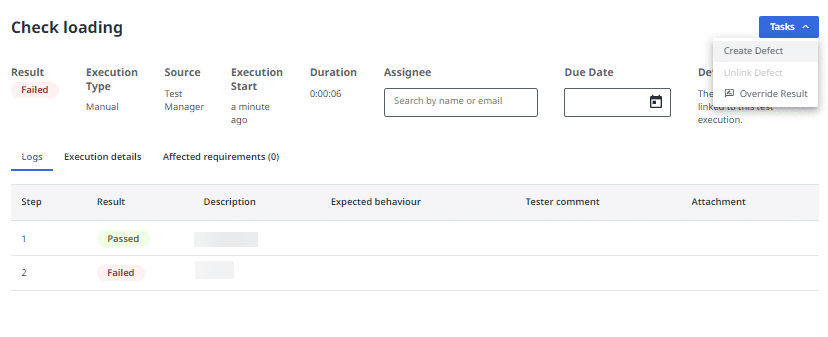
Defects can be created directly from the test case logs within the Execution page of Test Manager:
1. Navigate to the Execution section.
2. Open a specific test result and click on the test case key to access the logs.
3. Click on Tasks and select Create Defect.
This action creates a defect in the integrated external tool (e.g., Jira, Azure DevOps) and links it to the corresponding test execution result. You can then open the defect directly in the external tool for further analysis and resolution.
Benefits of Defect Synchronization
✅ Streamlined Workflow — automates the process of defect creation and linking, reducing manual effort.
✅ Enhanced Traceability — maintains a clear connection between test cases, execution results, and defects.
✅ Improved Collaboration — facilitates communication between testing and development teams through integrated tools.
✅ Efficient Defect Management — allows for quick identification and resolution of issues uncovered during testing.
ALM Integration Patterns
Test Manager supports two ALM integration patterns with external tools. The integration patterns are independent of the CI/CD pipeline integrations.
Basic ALM integration
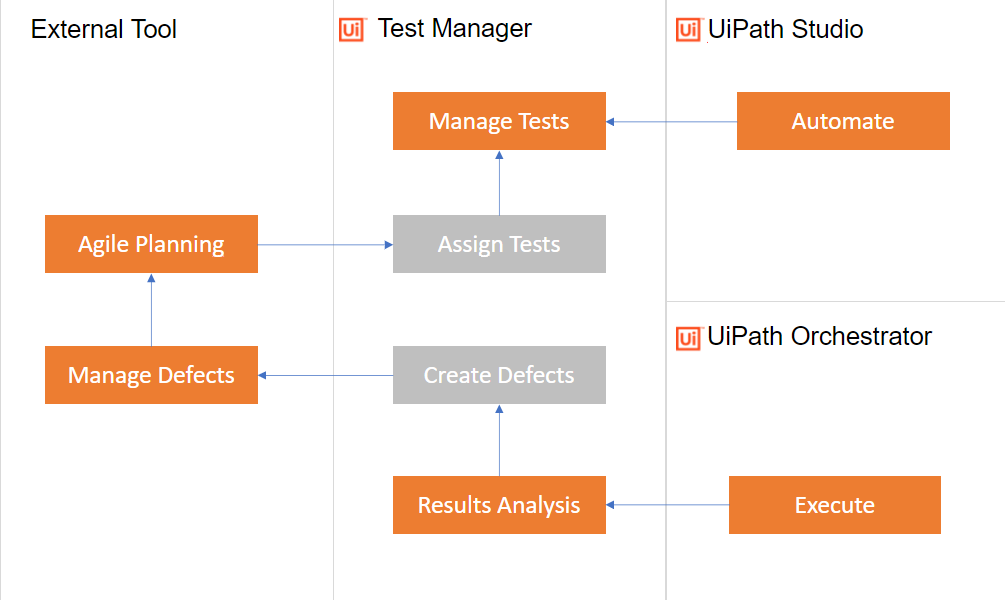
This integration pattern is useful for scenarios where external ALM tools for defect management, agile planning and requirements management are already in place but lack test management capabilities.
This way of integration makes use of Test Manager for managing tests and results while integrating the testing process into the development lifecycle supported by the external toolset.
In the diagram above, you can view which tasks are performed by which component (external or UiPath) for this ALM integration pattern. The direction of a relationship between the components is indicated by the arrows.
In a real-life scenario, you will be using Studio to create automation and assign it to your tests, followed by test execution performed by Orchestrator, with the results being pushed to Test Manager for analysis and integration into the development process.
In the context of a failed test, as a result of a test execution, you might want to create a defect. If you have an external tool for defect management, you can use Test Manager to create this new defect. The defect will be created in your tool and linked to all affected requirements. The defect will be enriched with detailed log information from the executing robots.
Sidestep ALM Integration
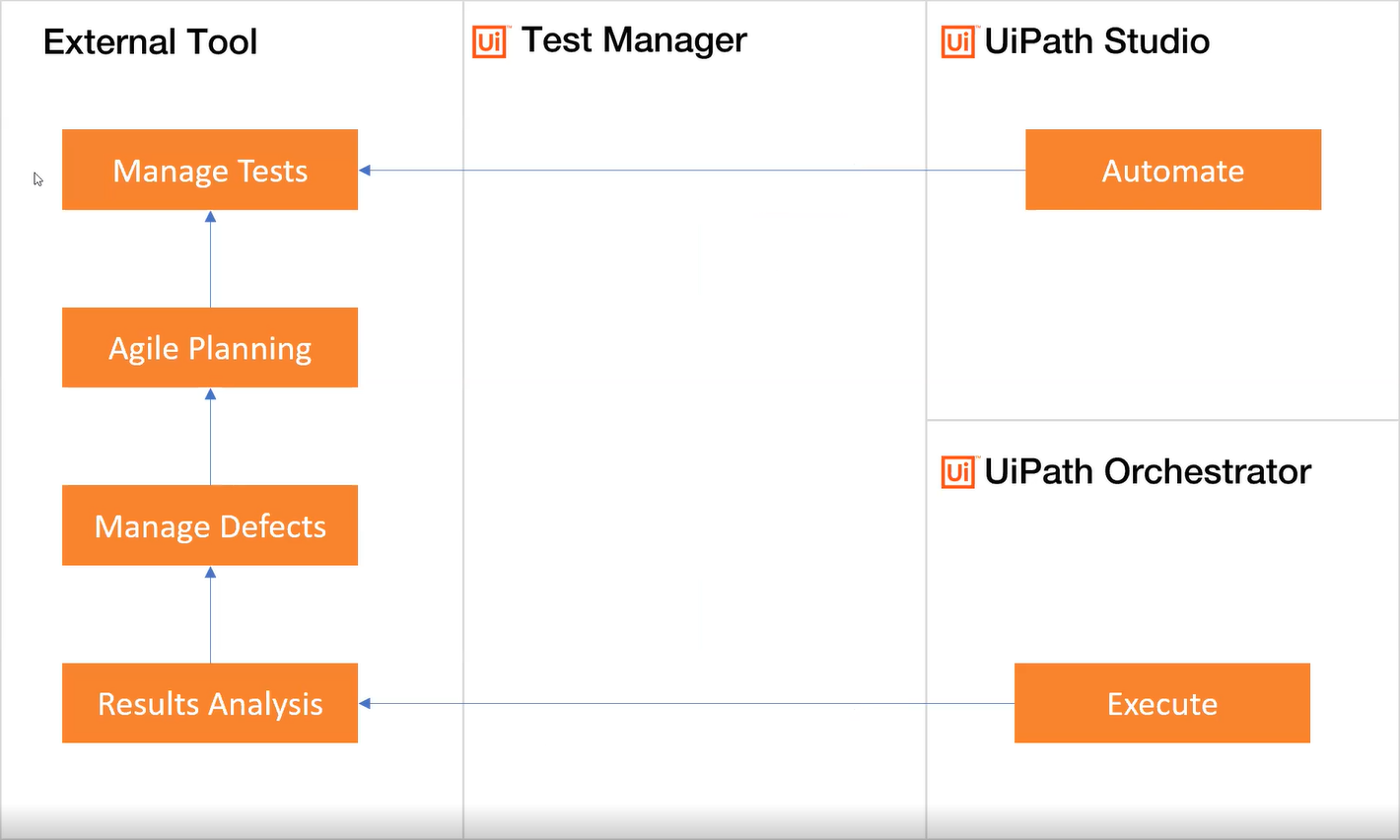
You can use this integration pattern to automate and execute your tests through Studio and Orchestrator, respectively, while using your external tools to create and manage the tests.
Through this integration pattern, you will be using external tools for test management and only the server component of Test Manager (Test Manager Hub) will allow using automation in test cases created in the test management solution of your choice.
In the diagram above, you can view which tasks are performed by which component (external or UiPath) for this ALM integration pattern. The direction of a relationship between the components is indicated by the arrows.
For example, you can use Studio to assign automation to your test cases, execute them through Orchestrator, and then push the results directly to your external tool (e.g. Xray for Jira). Execution results are uploaded to Test Manager Hub and then pushed to your external tool through the connectors.
Types of ALM Tools Integration
UiPath Test Manager supports 2 types of ALM Tools Integration:
✅ Native Integration (limited functionality)
✅ Using Test Manager Connect
Native Integration - Out Of The Box Connectors
Test Manager provides native integrations to widely-used Application Lifecycle Management (ALM) tools, like ServiceNow, SAP Solution Manager, Azure DevOps, Jira, and even Jira plugins like Xray.
The connectors are libraries that connect external ALM tools with Test Manager. A generic interface defines how an external system is to be integrated. The connectors are out-of-the-box and provide the specific implementation of this interface in order to integrate certain ALM systems.
You can configure the connectors in Test Manager for each project, individually. Any number of external systems and projects can be integrated with Test Manager.
Access the Integrated ALM tools and Synchronization matrix for an overview of the most common integrations between UiPath Test Manager and various ALM tools through Planview Hub.
Here's a look at native integration with Jira and synchronization with Test Manager:
Test Manager Connect
Test Manager Connect offered by Planview® allows seamless integration between Test Manager and a multitude of Application Lifecycle Management (ALM) tools, through the Planview® Hub.
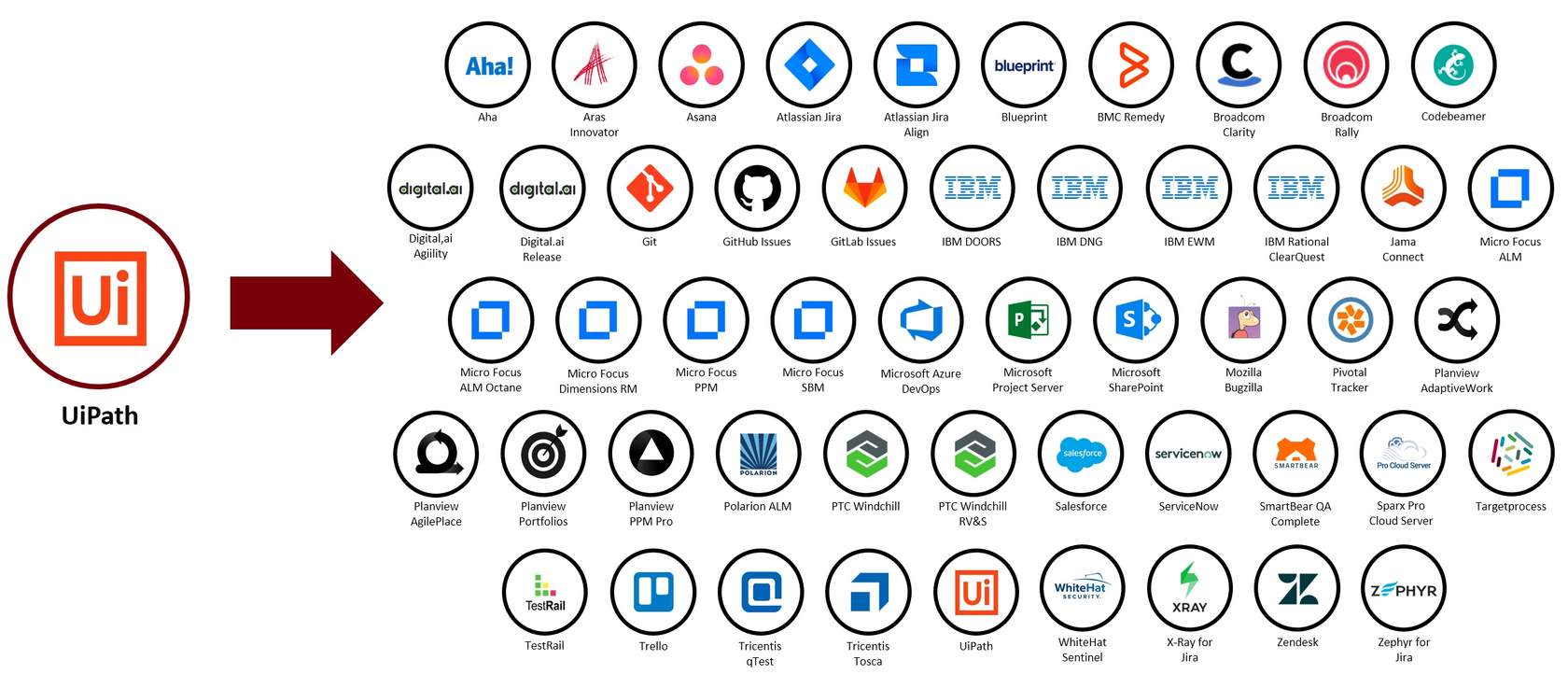
UiPath Test Manager Connect allows UiPath customers to stay in their favorite UiPath tools, while also synchronizing and implementing additional tools into their toolchain. UiPath offers over 60 different connectors and connects to your tools via REST APIs. Also, to ensure integrations are always working, UiPath Test Manager Connect conducts 500,000 API tests per day.
What is UiPath Test Manager Connect
✅ 3 styles of integration including bi-directional synchronization
✅ Out-of-the-box, point-and-click configuration; not custom services
✅ Model based integration making it easy to scale to hundreds of projects
✅ Maintain artifact relationships by mirroring relationships like parent-child
Supported Connectors
Styles of Integration
UiPath Test Manager Connect offers three different styles of integration: Synchronization, Gateway, and Enterprise Data Stream.
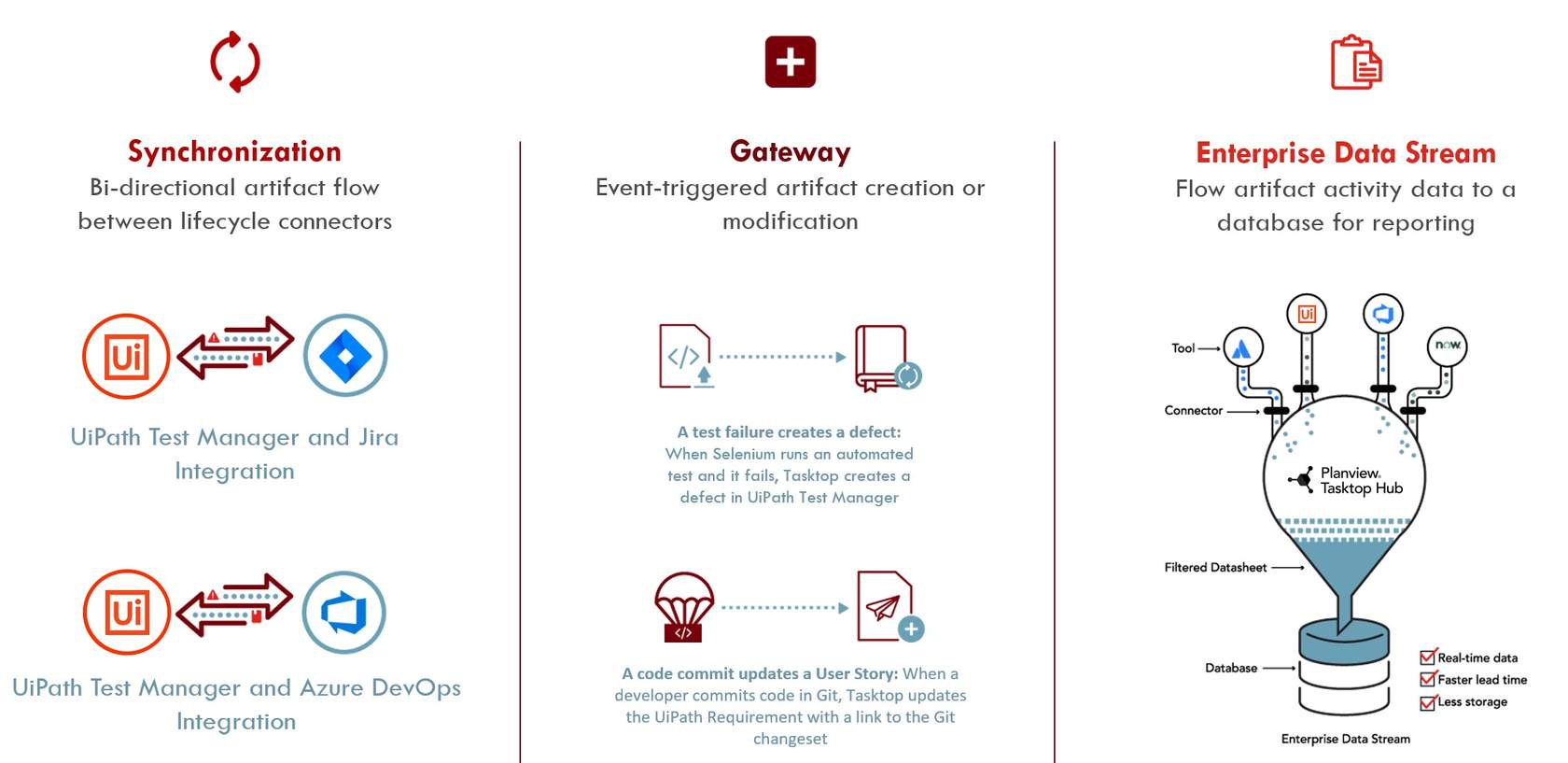
✅ Synchronization — the most used integration style. This integration style allows work items to flow bi-directionally between two separate tools (repositories).
Example
UiPath Test Manager Connect can synchronize a UiPath Test Manager Requirement over to Atlassian Jira as an Epic.
✅ Gateway — a one-way push of information from a tool that UiPath Test Manager Connect does not have a connector for (example: Bitbucket) back to a UiPath Test Manager. There are two types of Gateway integrations:
- Gateway Create is used to create new artifacts (work items) in UiPath Test Manager when artifacts are sent to UiPath Test Manager Connect through an inbound webhook.
- Gateway Modify is used to modify existing artifacts in a UiPath Test Manager Connect tool when updates to artifacts are sent through an inbound webhook.
Examples
Gateway Create: When a Jenkins build fails, it will automatically create a defect in UiPath Test Manager.
Gateway Modify: When a developer commits code in Git, UiPath Test Manager Connect will modify the existing UiPath Test Manager Requirement referencing that code, creating traceability.
✅ Enterprise Data Stream — used to pull all the software lifecycle data that has been created or modified from the repositories that are connected to UiPath Test Manager Connect, normalizes the data through UiPath Test Manager Connect's Model Based Integration (reducing the need for heavy extracts, transforms, or loads), and pushes that data into a database. Once in the database, customers can use their BI tools to create custom reports across their ecosystem.
Model-Based Integration
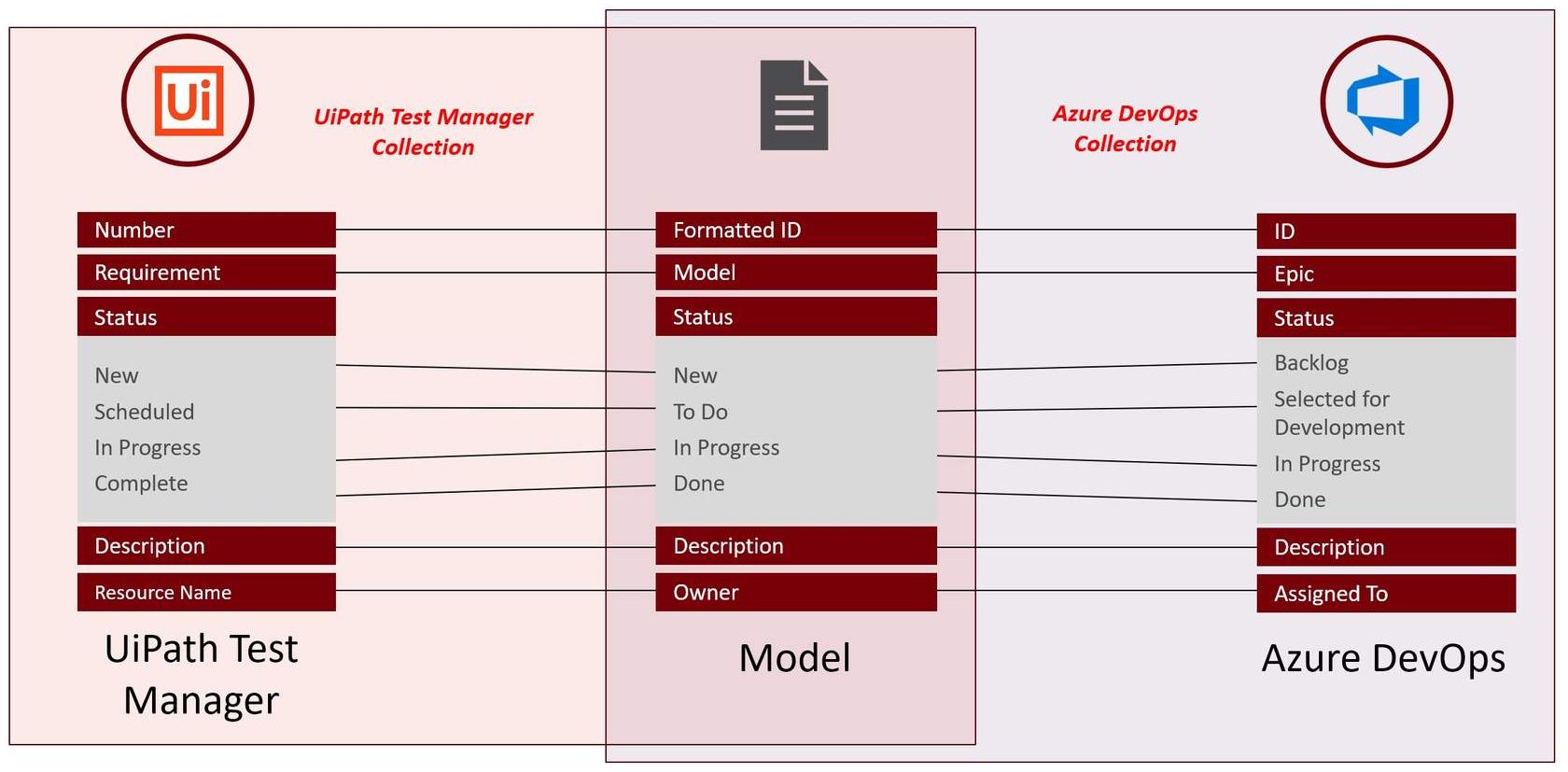
In basic terms, a model is simply a list of fields or attributes that define a certain artifact that you want to integrate. A model is a tool that makes the integration process scalable by defining the fields for each artifact type you would like to integrate.
The value of this model is that instead of having all of the fields and field values managed separately in UiPath Test Manager and Azure DevOps, you can use the UiPath Test Manager Connect model in the center to act as a translator to easily direct information where it needs to go.
4 Key Steps to Set-Up Model Based Integration
Setting up a model-based integration follows four key steps, moving from connecting your repositories through to running the finished integration:
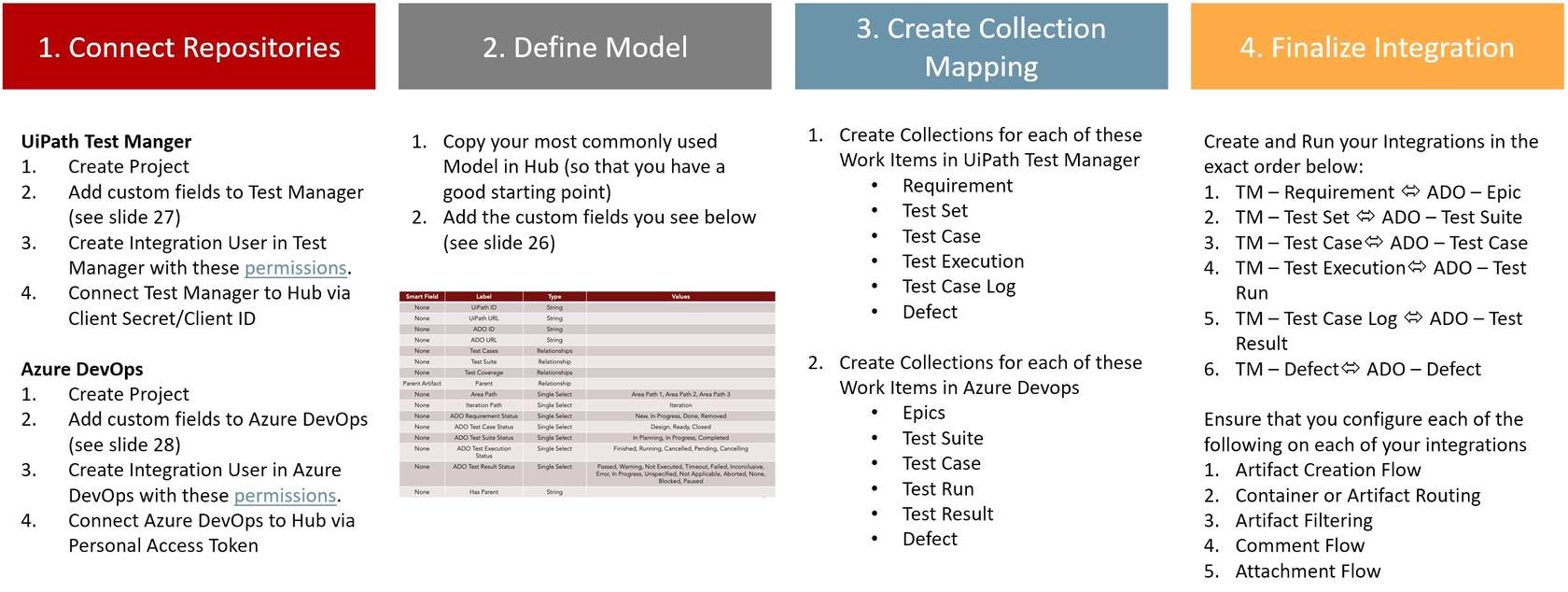
1. Connect Repositories — create your project in both UiPath Test Manager and the external tool (e.g. Azure DevOps), add the required custom fields to each, create an integration user with the right permissions, and connect both tools to the Planview Hub.
2. Define Model — start from a commonly used model in the Hub, then add the custom fields you'll need so the model has a good starting point to translate between systems.
3. Create Collection Mapping — create collections for each of the relevant work items in both UiPath Test Manager (Requirement, Test Set, Test Case, Test Execution, Test Case Log, Defect) and the external tool (Epics, Test Suite, Test Case, Test Run, Test Result, Defect).
4. Finalize Integration — create and run your integrations in the correct dependency order, and configure the artifact creation, routing, filtering, comment, and attachment flows for each.
The video below walks through this setup end to end: