From Manual Test Case to Test Automation
Test Explorer
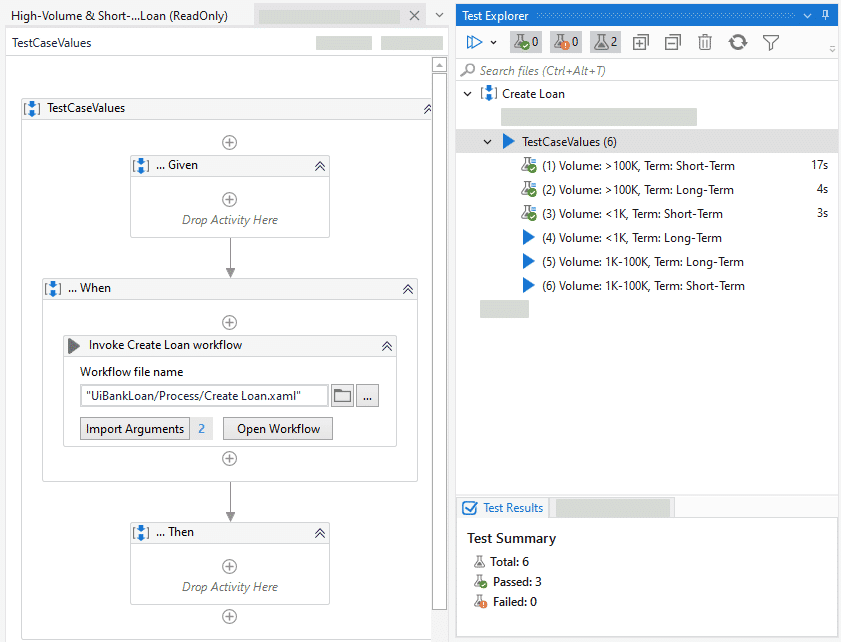
Test Explorer is a panel that shows information relevant to test automation. Use Test Explorer and its sub-panels to group tests together, perform debugging, or analyze activity coverage.
Conditions
Test Explorer results information is session-based. If you close Studio, the information shown in Test Explorer is cleared. Test cases are listed in Test Explorer based on execution order.
Working with Test Explorer
To show only relevant information, use the Test Explorer toolbar to filter test results by result state. You can also use multiple options to re-run test cases.
Descriptor Coverage
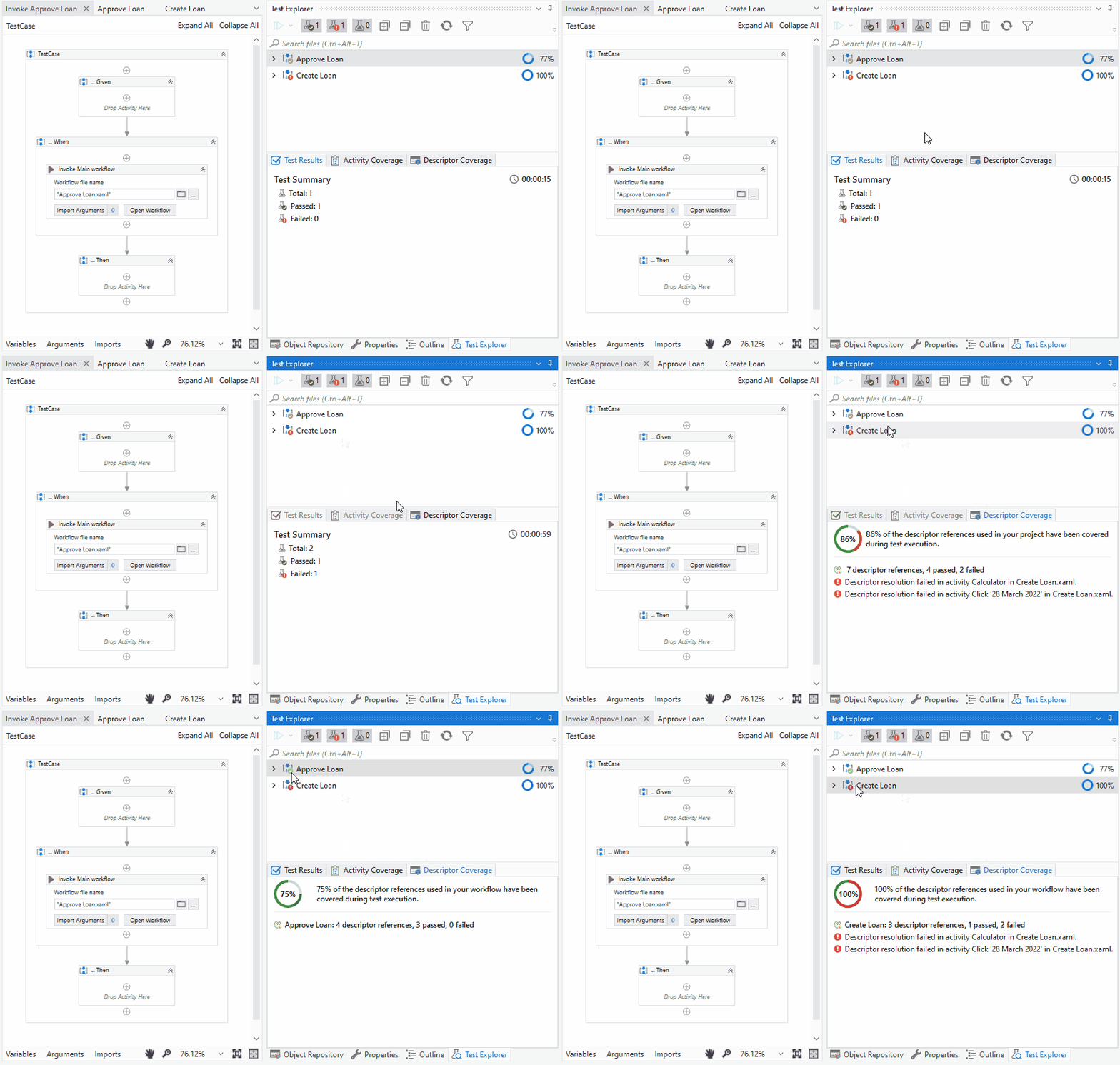
Descriptor Coverage is a panel showing information on object recognition UI elements covered during execution. Coverage results appear in the Test Explorer, in the Descriptor Coverage panel. Use this panel to view activity coverage when working with Selectors or Object Repository.
Analyzing descriptor coverage results
To view coverage during test execution, run a test case that invokes workflows containing Selectors or that use the Object Repository.
You can analyze selector coverage or debug workflows with failed coverage. If you run all your test cases, the panel shows the number of descriptor references that passed and provides details on failed selectors similar to Activity Coverage, you can view covered activities in the Design panel. Double-click a failed descriptor resolution to jump directly to the failed selector within the workflow.
Coverage Calculation
For test cases, the descriptor coverage percentage is relative to the total number of selectors that go into a test case execution. For example, if a test case has selectors and an invoked workflow also has selectors, coverage is calculated based on the total.
Autopilot for developers
Designed to help developers create and test automations faster and more easily. Autopilot integrates seamlessly into the workflow design experience, accelerating and streamlining development letting experienced developers handle more strategic tasks while lowering the entry barrier for citizen developers.
Capabilities:
✅ Creating workflows, coded workflows, and test cases using natural language instructions.
✅ Generating coded workflows and test cases using custom prompts within the code editor.
✅ Generating and fixing complex expressions using natural language.
✅ Suggesting next steps in your automation by creating sequences of activities.
✅ Summarizing the inner workings of an activity or a sequence.
✅ Generating apps from Data Service entities, .pdf files, images, or text prompts.
Exercise: create your first automated test case using Autopilot for Developers
- Based on the requirements created in the previous exercise and the Test Studio project already created.
- Autopilot relies on the imported Object Repository to identify and interact with UI elements.
- Go to Test Explorer → Overview.
- Right-click on the test case name and select Generate Test Case with Autopilot.
- Adjust it and run it.